In this blog post:
- Set up conditional logic
- Set up conditional logic for error handling
- Stop execution in conditional branches
- More conditional logic examples
- Related Okta Workflows guides
- Okta Workflows resources
This blog post teaches you how to set up conditional logic (if/else) in an Okta Workflows automation.
🎥 Attend our online meetup on Tuesday, September 30, 10 AM PT. You will learn more about setting up conditional logic in Okta Workflows.

Okta Workflows has several if/else cards in the Branching category:
- Assign If
- Continue If
- Lookup
- If/Else
- If/ElseIf
Set up conditional logic
Use the Assign If card
The Branching-Assign If card is a simple decision-making card. It checks whether a condition is true or false. Then, it assigns a specific value to a field based on the outcome. Think of it as a basic “if-else” statement for setting a single value.

How the flow works
- The Flow Control-Assign card sets the Expense amount value to 100.
- The Branching-Assign If card checks its condition. Is the Expense amount (100) less than or equal to 250?
- If less than or equal (true), then it sets the Is approved output field to Approved.
- If greater than (false), then it sets the Is approved output field to Need approval.
- The Text-Compose card displays the Is approved value.
The Assign If card only sets a field’s value. It doesn’t support adding extra logic in either the true or false sections. Other cards we cover next allow adding extra logic.
The Assign If card only assigns a value. It doesn’t do other functions or actions. Its sole purpose is to populate a single field based on one condition.
Use the Continue If card
The Branching – Continue If card evaluates a condition. If the condition is true, the flow continues to the next step. If the condition is false, the flow execution stops. So, use this card to stop or continue running a flow based on a condition.
This flow stops if the Expense amount is less than 250. It continues to the next step if the Expense amount is greater than 250.

How the flow works
- The Assign card sets Expense amount.
- The Continue If cards check if the Expense amount is greater than 250.
- If true (greater than 250), then continue to the next step.
- If false (less than 250), the flow stops.
- The Compose card displays text if the Continue If card evaluates to true.
This execution shows the flow stops at the Continue If card since the condition evaluated to false (100 > 250).

This execution shows the flow continues to the next step since the condition evaluated to true (500 > 250).

Use the Branching-Lookup card
The Branching-Lookup card converts one value to another using a lookup table.
This flow looks up a region and returns its description:

How the flow works
- The Assign card creates a field with a value.
- The Lookup card looks for a result using the value the Assign card passed to it.
This flow execution shows passing EMEA to the Lookup card. The card returns Europe, the Middle East, and Africa.

This flow execution shows running the Lookup card with an unknown value, which results in the outcome No region found.

Use the Branching-If/Else card
The Branching-If/Else card evaluates a condition. If it’s true, it runs one set of cards; if it’s false, it runs another.
This flow shows the If/Else card checking if the Expense amount is greater than 500:
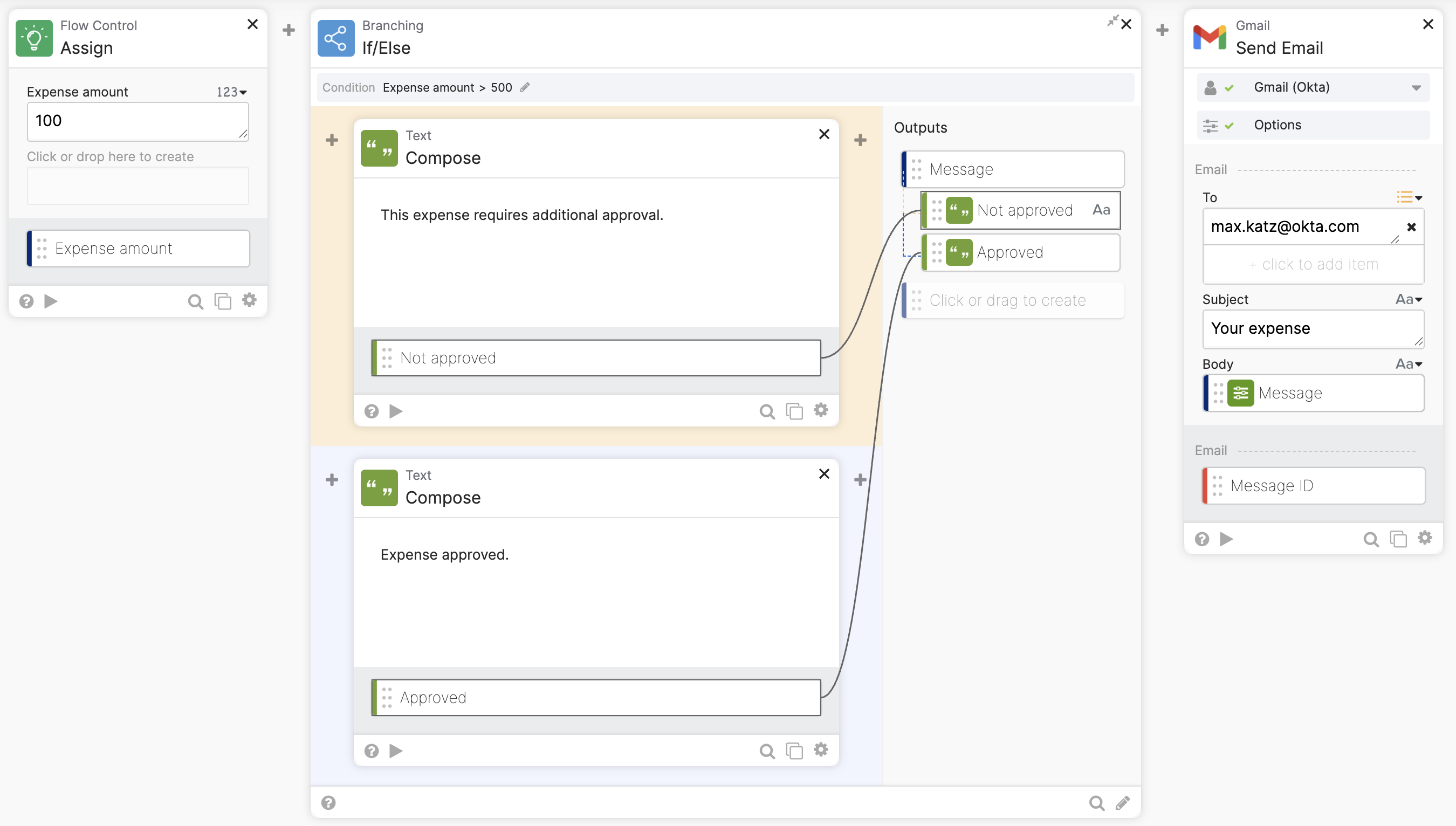
When you add the If/Else card to a flow, it will prompt you to set a condition. Clicking Save will switch to the view you see above. Click the pencil icon next to Expense amount > 500 to switch back to condition editing.

How the flow works
- The Assign card sets an Expense amount.
- The If/Else card evaluates whether the Expense amount is greater than 500.
- If true, it runs the cards in the true branch.
- If false, it runs the cards in the false branch.
- The card also has an optional output field named Message. The Message field is set to either the message in the true branch or the false branch.
Running the flow with an input of 100 runs the false branch:
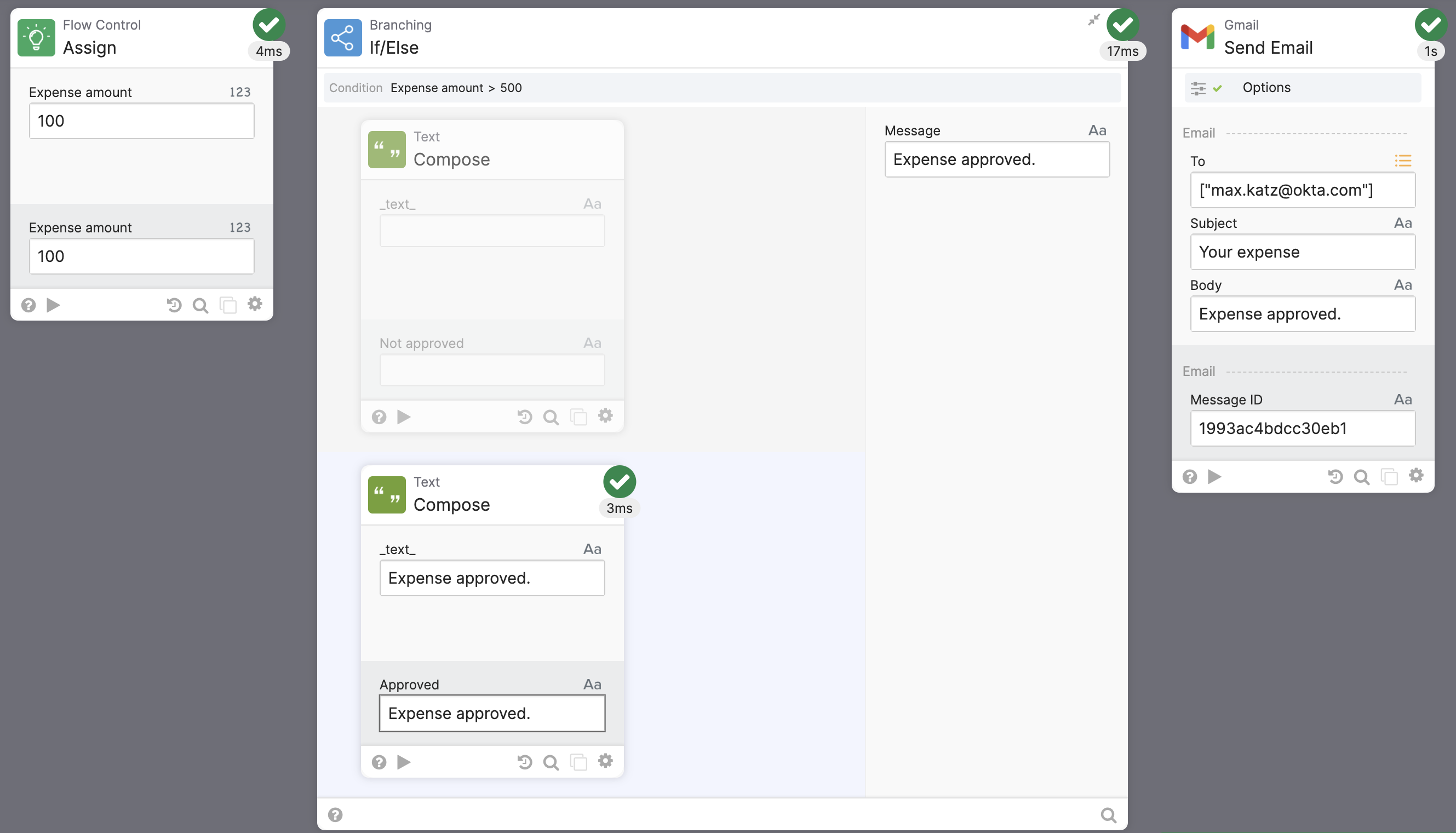
Running the flow with an input of 575 runs the true branch:

Use the If/Elseif card
The Branching-If/Elseif card is the most flexible conditional card. The card allows to specify more than one condition to check. The card allows to build this conditional logic:
if (...)
else if (...)
else if (...)
else
The If/Elseif has If and Else branches when you add the card to a flow. Click the + between the branches to add more Else if branches.
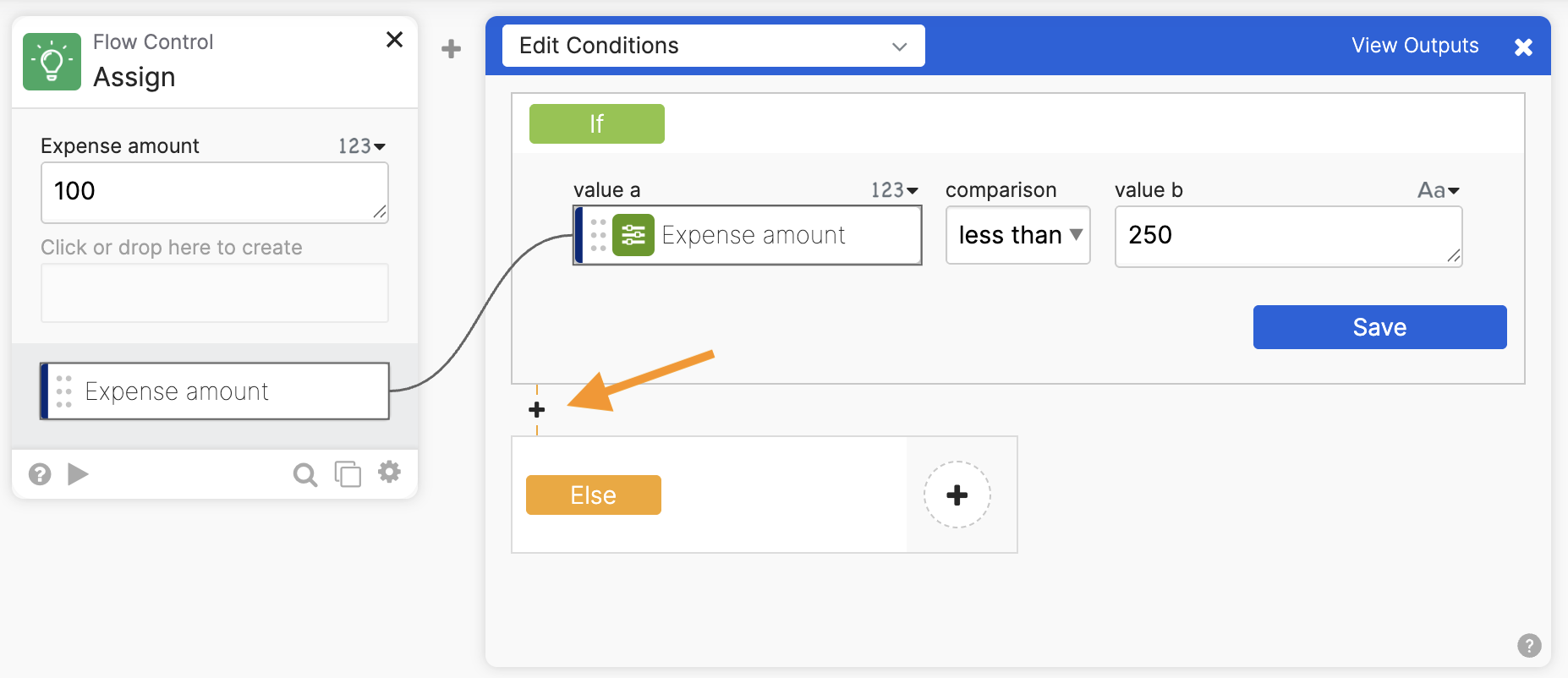
This flow shows the If/Elseif card with three branches:

How the flow works
- The Assign card sets Expense amount value.
- The If/ElseIf card defines three conditions and sets a different messages for each condition.
- The last Assign card displays the message from the If/Elseif card output.
Click on + inside a branch to add cards to run when this condition is true. You can also define output for the card (click View Outputs to reveal the outputs).

The next three images show running the flow using three inputs.

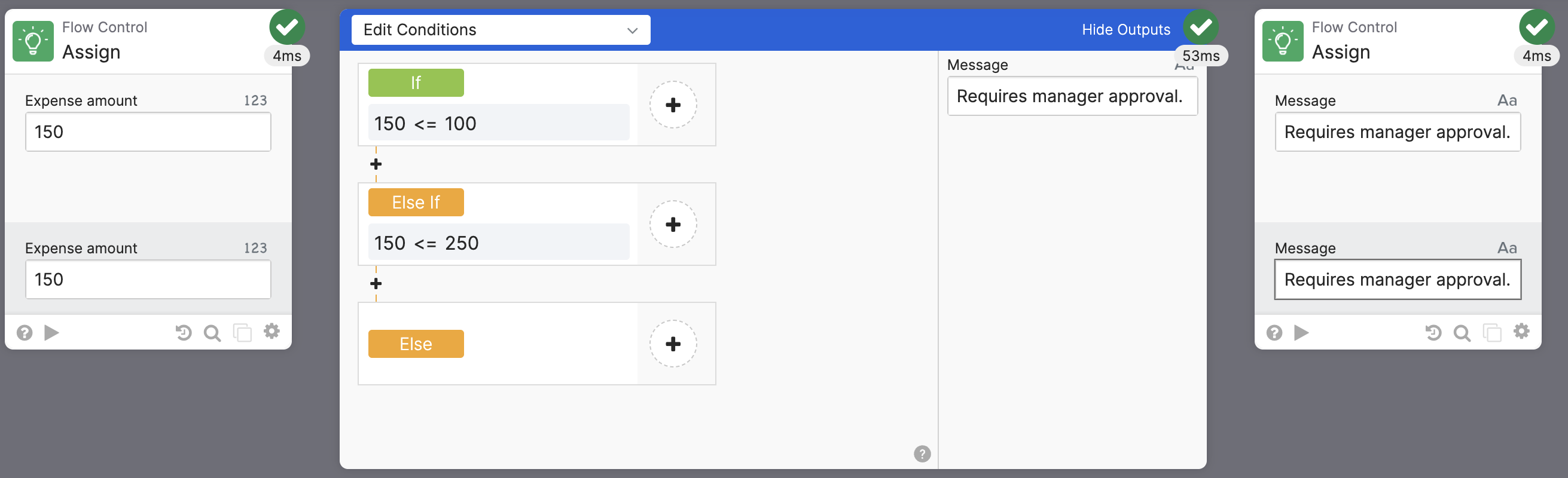

Set up conditional logic for error handling
Okta Workflows has the Error Handling-If Error card. This card allows to specify alternate steps to handle an error without stopping a flow.
This flow show the If Error card’s Try branch. The Okta-Read User card reads information about a user. But since the ID is invalid, the card will return an error.
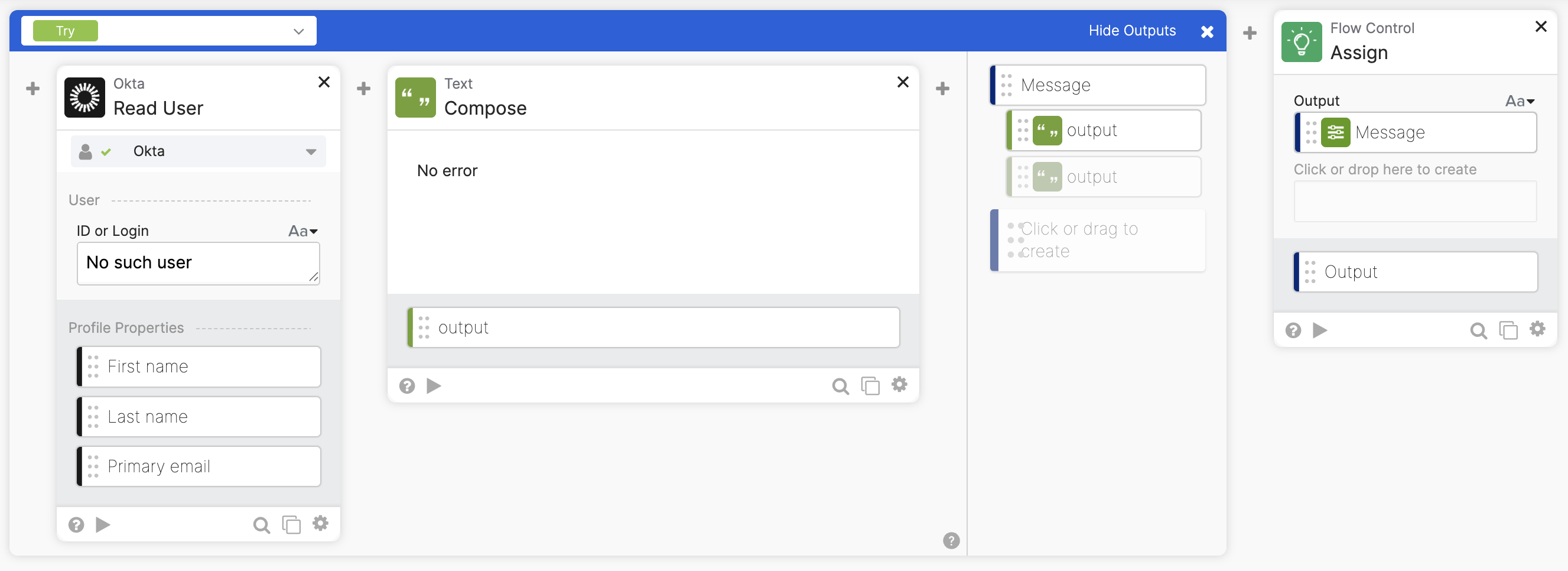
This flow shows the card’s If Error branch. If the steps in the Try branch result in an error, execution will jump into the If Error branch. This allows to handle the error and continue flow execution.

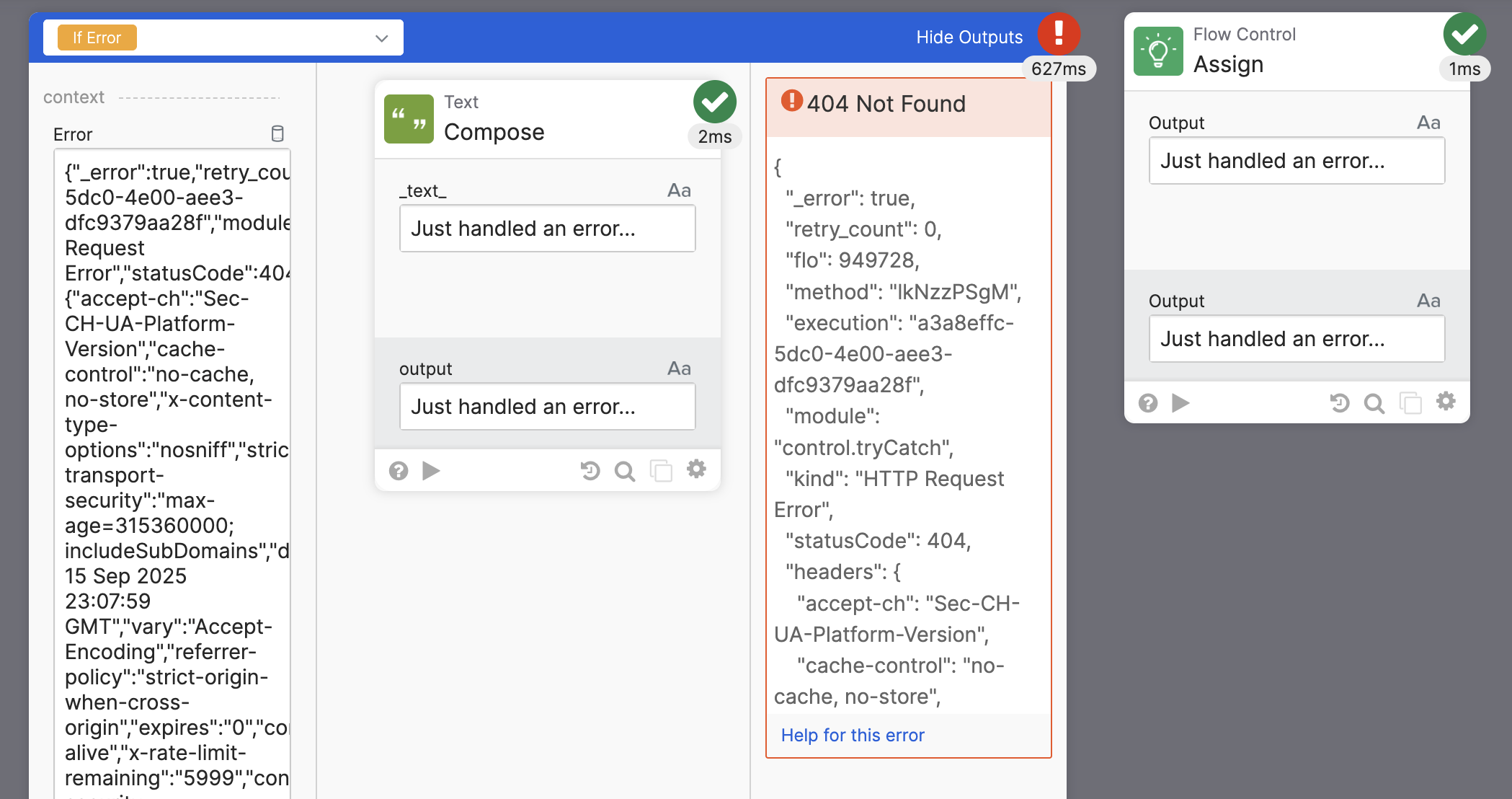
Running the flow where the Read User card fails:
Stop execution in conditional branches
Note the difference in behavior when placing the Return card inside a branch.
- If/Elseif — the branch stops, the flow continues.
- If Error — the branch stops, the flow continues.
- If/Else — the branch and the flow stop.
Use the Return card inside a branch
When you use the If/ElseIf or If Error card, each branch is an anonymous helper flow. Just like a helper flow, a Return card returns you to the parent rather than halting.
When you use the Return card inside a branch, the execution stops the branch steps. It exits the branch and will continue to the next card.
The flow below adds the Return card in the Else branch. It also adds another field to the Assign card so you can see the flow steps continue.

The Return card stops the Else branch; but, the execution continues. Since the If/Esleif card stopped, the Message field is not set. Only the Message 2 field is set since it is static.

Additionally to the Return card, the Continue If card works the same way when placed inside a branch.
Read more in the Branches section, in the cards’ documentation:
The If/Else and Return cards
If you place a Return (or the Continue If) card in the If/Else card’s branch, the flow execution will stop. This happens because it does not use an anonymous helper flow.
More conditional logic examples
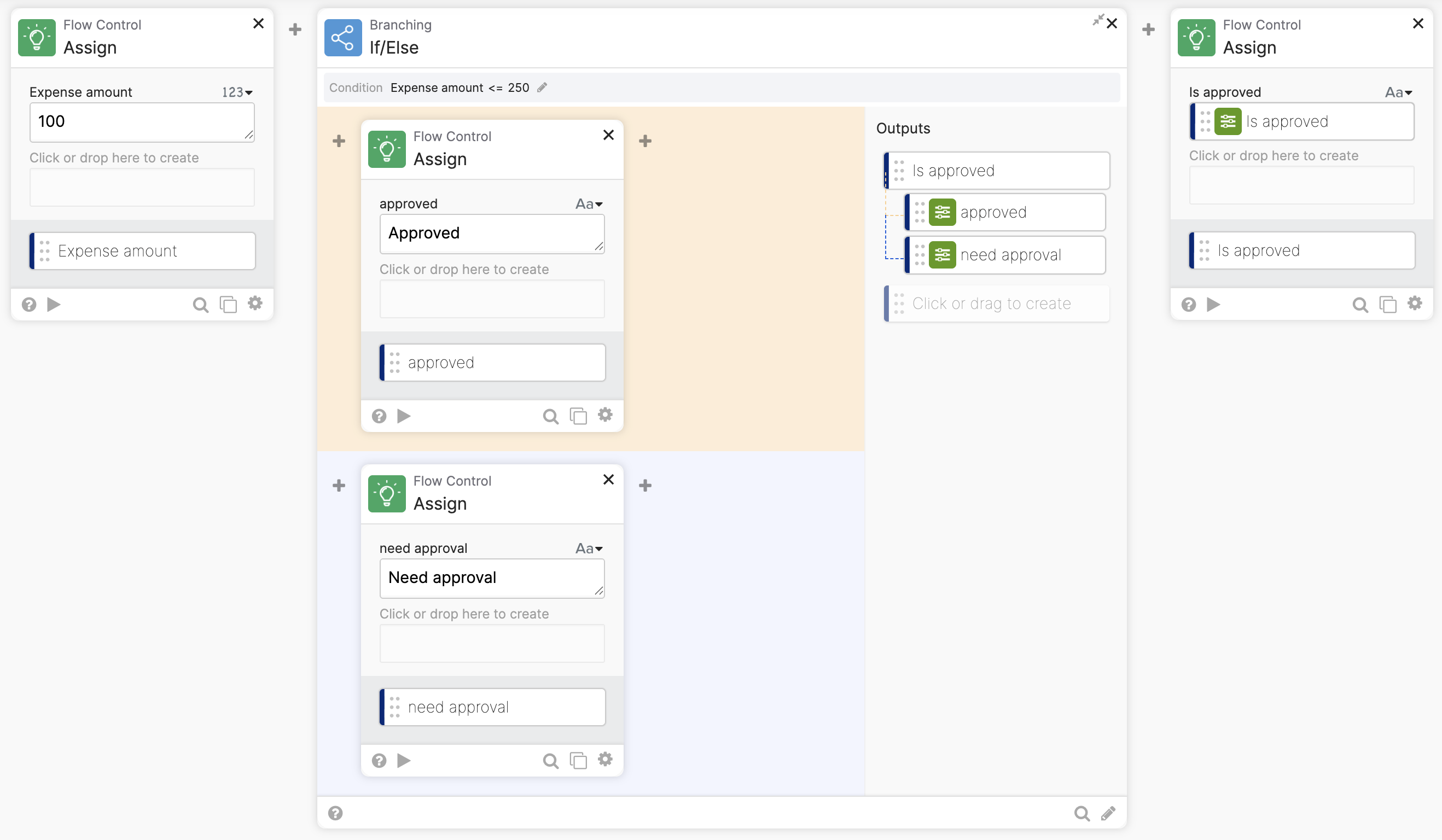
This guide covered the Assign If card earlier. The card evaluates a condition and assigns a value to a field. The card is really just a specialized version of the more generic If/Else card.
This flow with the Assign If card
works the same way as this flow with the If/Else card:
In a similar fashion, you can use the If/Else card to show how the Continue If card works:

Related Okta Workflows guides
Okta Workflows resources
🚀 New to Okta Workflows? The Getting Started with Okta Workflows page has all the resources to help you get started.
📺 Like learning from videos? Watch Okta Workflows videos.
❓Have a question? Ask during community office hours, post on the community forum, or email me.
🙋🏻♀️ Want to learn from the community? Join the #okta-workflows channel on the Mac Admins Slack.
📖 Want to learn more about identity automation? Take Workflows training on Okta Learning.
 Max Katz
Leave a comment