In this guide:
Okta Workflows guides
Okta Workflows guides are questions and answers from the community office hours, the #okta-workflows channel on MacAdmins Slack, and other places. Read all the other guides.
How to create JSON data in Workflows?
Many API services expect data in JSON format. This blog post will teach you how to create JSON data in Workflows.
Creating JSON data
This blog post covers three ways creating JSON data:
- Create JSON from a string.
- Create with the Object – Construct card.
- Create a nested JSON object.
Create JSON from a string
If you have a JSON string, for example:
{
 "name": "Jane",
 "description": "Standard user",
 "email": "jane@atko.com",
    "features": {
       "SSO": "on",
       "MFA": "on",
       "Workflows": "on"
   }
}
The following will create a typed JSON data structure:

The result running this flow is:

The JSON – Parse card returns a JSON object with other cards:

You could also pass data from other cards to create the JSON data:
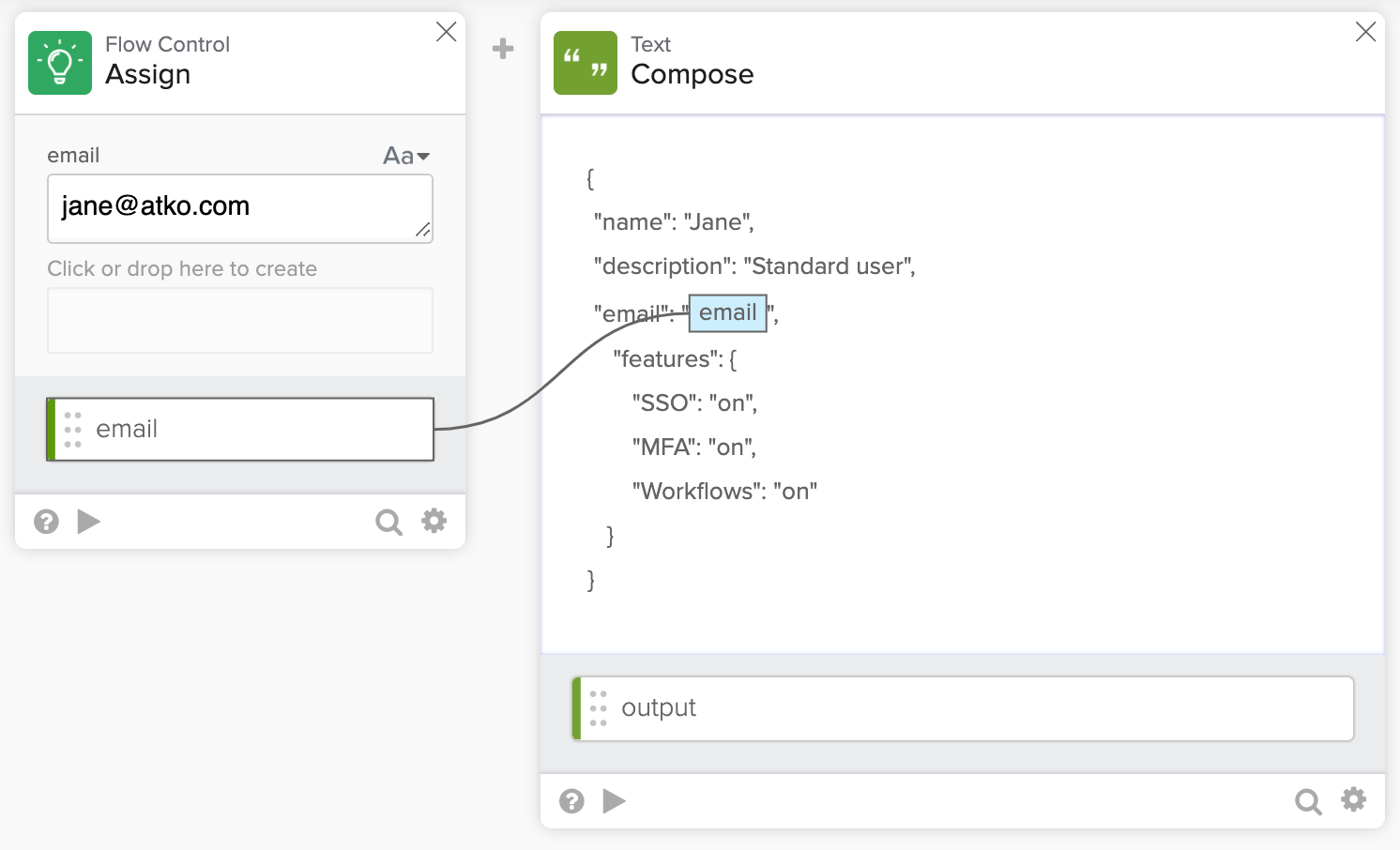
Create with the Object – Construct card
You can also use the Object – Construct card to create a JSON object:
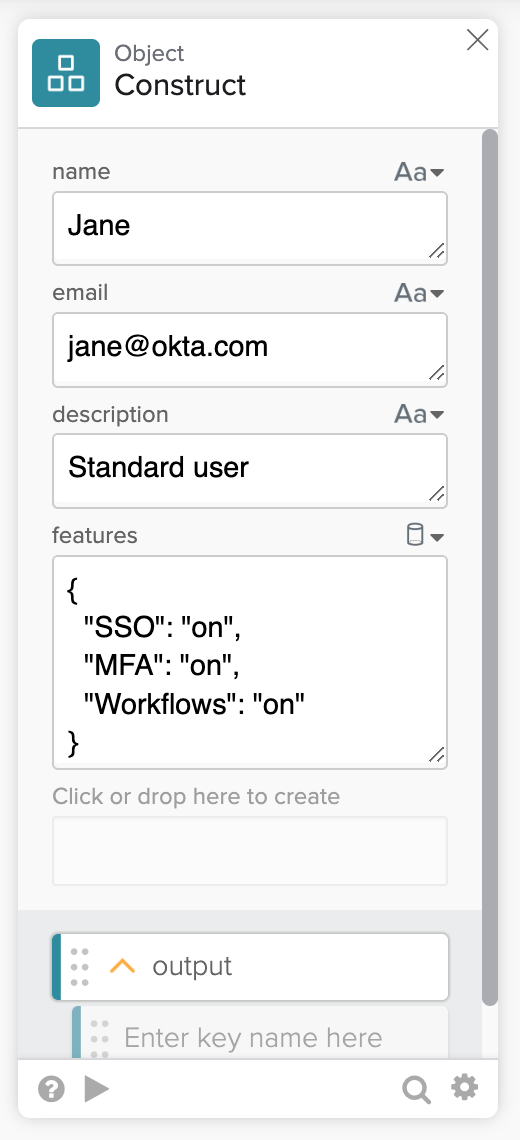
Testing this cards results in the following JSON object:

Using the Object – Construct card is handy when you need to create headers for an API service:
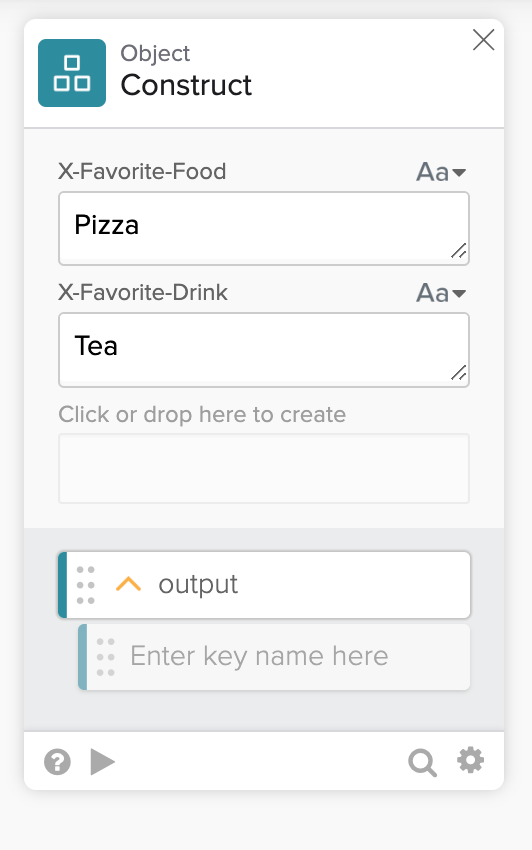
The card creates the following JSON object:
{
  "X-Favorite-Food": "Pizza",
  "X-Favorite-Drink": "Tea"
}
Create a nested JSON object
You can create a nested JSON object the Object-Construct card. Notice that the field name is set to user.email, and uses a dot-notation:
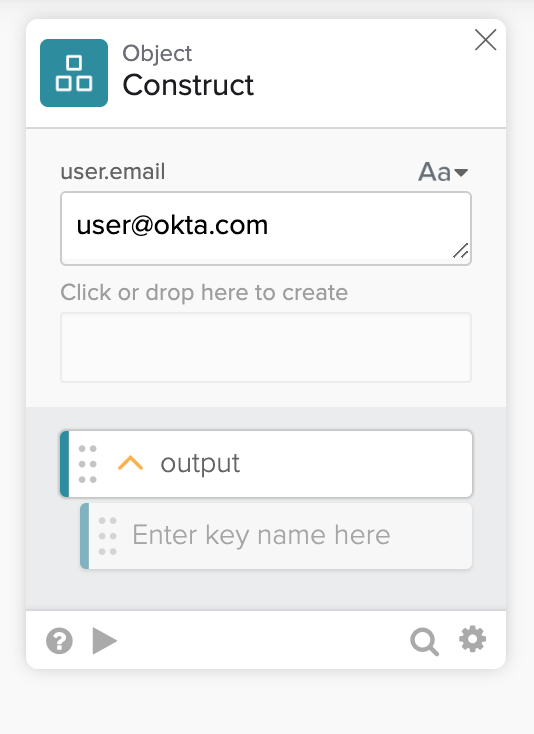
Testing the card:
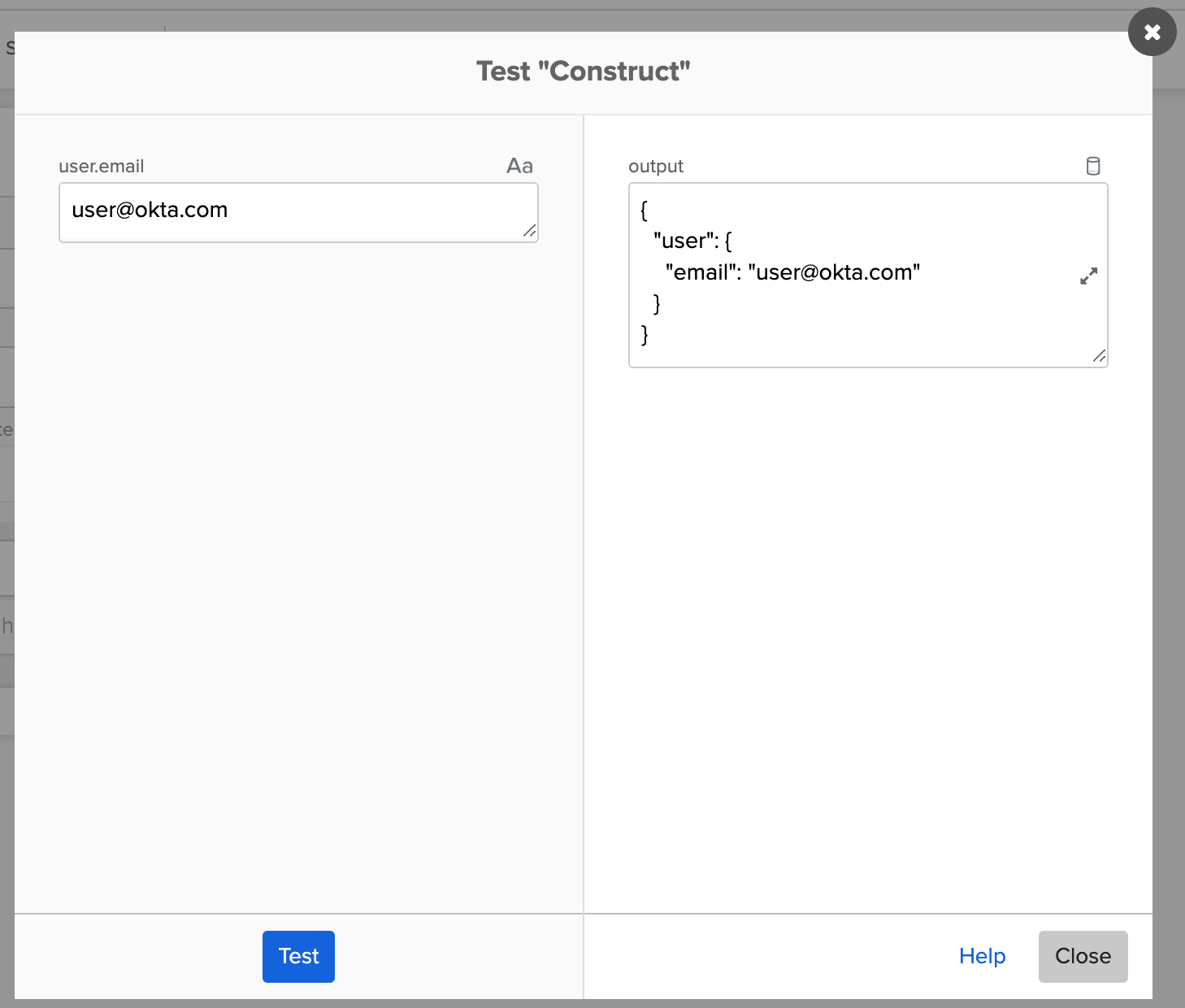
JSON result:
{
  "user": {
    "email": "user@okta.com"
  }
}
Okta Workflows resources
🍫 Get help from Workflows specialists during weekly community office hours.
📺 Learn from Workflows videos.
🛟 Get help from support: discuss a Workflows topic or ask a question.
🙋🏻♀️ Get help from the community: join the #okta-workflows channelon MacAdmins Slack.
Leave a Reply