In this guide:
- Okta Workflows guides
- Save deactivated users into a Workflows table
- Export to a CSV file and email
- Related Okta Workflows guides
- Okta Workflows resources
Okta Workflows guides
Okta Workflows guides are questions and answers from the community office hours, the #okta-workflows channel on MacAdmins Slack, and other places. Read all the other guides.
How do you save and export deactivated users into a CSV file?
This guide will teach you to save and export deactivated users into a CSV file in Okta Workflows.
The solution has two flows:
- Flow 1: save the deactivated users into a Workflows table.
- Flow 2: export data from a table as a CSV file and email it.
Save deactivated users into a Workflows table
The first flow runs when a user is deactivated and saves user information into a table.

Flow steps
The flow has the following steps.
Run when a user is deactivated
The Okta – User Deactivated event runs the flow.
Read user information
The Okta – User Deactivated event provides minimal information about the user. The flow uses the Okta – Read User card to obtain additional information about the user.
Save user information into a table
The Tables – Create Row card saves user information into a table.
The table looks like this:

Export to a CSV file and email
The second flow runs daily, exports the users to a CSV file, and emails the file.

Flow steps
The flow has the following steps.
Run on schedule
The Okta – Scheduled Flow card runs the flow on schedule, for instance, daily or weekly.
Export to CSV
The Tables – Export to CSV card exports table data to a CSV file. The card configures which columns to export.
Get today’s date
You want to include the date the flow ran in the email. The Date & Time – Now card returns the current time.
Convert today’s date
The Date & Time – Convert card converts the time to a specified time zone.
Create email
The Text – Compose card sets the email subject and body.
Send email
The Gmail – Send Email with Attachment sends an email with the attached file.
Result
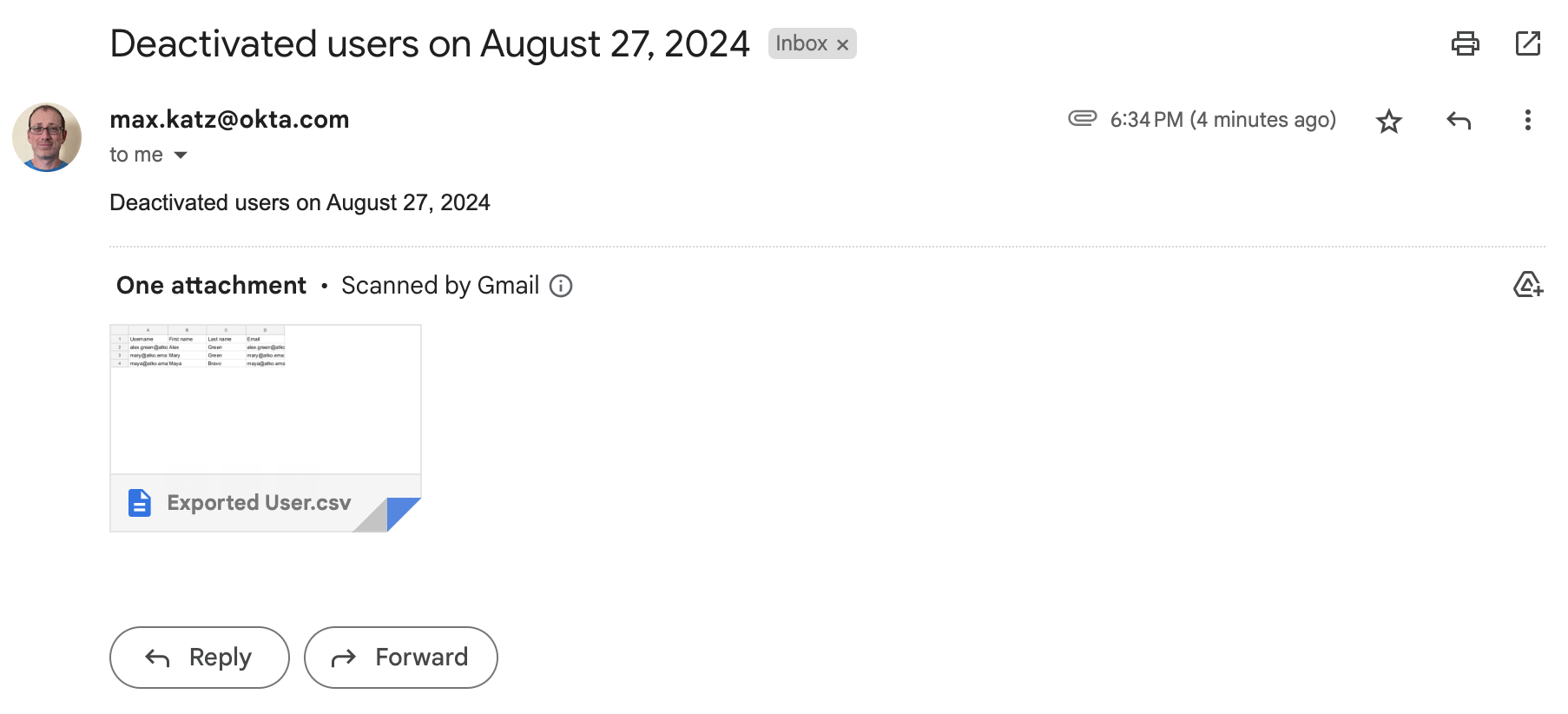
When the flow runs, it sends the following email:
Related Okta Workflows guides
- How to Export Group Membership to a CSV File and Email the File in Okta Workflows.
- How to Send an Email With an Attachment from Workflows.
- How to Remove a User from Google Groups When the User Is Deactivated in Okta Workflows
Okta Workflows resources
🍫 Get help from Workflows specialists during weekly community office hours.
📺 Learn from Workflows videos.
🛟 Share your flows and ask questions on the Okta Workflows community forum.
🙋🏻♀️ Get help from the community: join the #okta-workflows channel on MacAdmins Slack.
 Max Katz
Leave a comment