In this guide:
- Okta Workflows guides
- Secure a flow with OAuth 2.0
- Invoke and test an OAuth 2.0 secured flow
- Related Okta Workflows guides
- Okta Workflows resources
Okta Workflows guides
Okta Workflows guides are questions and answers from the community office hours, the #okta-workflows channel on MacAdmins Slack, and other places. Read all the other guides.
How do you invoke and test an OAuth 2.0 secured flow?
This guide will teach you how to invoke and test an Oauth 2.0 secured flow in Okta Workflows.
Secure a flow with OAuth 2.0
Complete the following steps on the Secure with OAuth 2.0 documentation page.
- Complete the Create an API service integration app steps on the Secure with OAuth 2.0 documentation page.
- In Step 7, copy the PEM key to your local machine.

- Click Edit in the General Settings section.
- Uncheck Proof of possession.

- In Step 7, copy the PEM key to your local machine.
- Complete the Configure your API endpoint settings steps.
- After the API Endpoint card, you can add the Return card:

- The Security level is set to Secure with OAuth 2.0 in settings:

- After the API Endpoint card, you can add the Return card:
Invoke and test an OAuth 2.0 secured flow
You need an access token before you can test the API endpoint flow. This section will teach you how to do it. You will use an Okta Workflows flow to generate the access token.
There are two steps to generate the access token.
You will use Workflows flow to complete steps 1 and 2.
Generate the access token
The following flow generates the access token:

The flow has the following steps.
Set the private key
The Compose card sets the private key you saved to your local machine. You can use a tool such as Visual Studio Code to format the key and paste it into the Compose card.
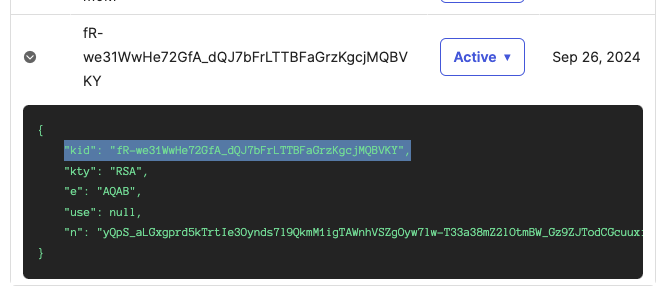
Set JWT header
The Construct card sets up the JWT header with the kid value.
Set flow fields
The Assign card sets up several flow fields:
- URL:
https://${yourOktaDomain}/oauth2/v1/token. - Client ID: from the application you created in step 1 of this guide.
- ExpiresIn: time in seconds after which the JWT (JSON Web Token) shouldn’t be accepted.
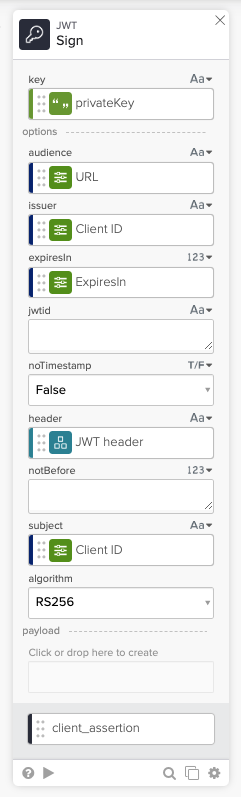
Sign the JWT token
The JWT – Sign card signs the private key. The card’s result is the client_assertion value.
Set request headers
The Construct card sets the request header properties.
Set request body
The second Construct card sets the request body fields. The card sets the following properties:
- grant_type:
client_credentials. - scope:
okta.workflows.invoke.manage. - client_assertion_type:
urn:ietf:params:oauth:client-assertion-type:jwt-bearer. - client_assertion: set to
client_assertionfrom the JWT – Sign card.
Get the access token
In the last step, the API Connector – Post card calls with fields from previous cards. The card’s results have the access token value.
{
  "token_type": "Bearer",
  "expires_in": 3600,
  "access_token": "eyJraWQiOiItdzNpbnY5U2FrRHR2TXB4bHdwRXg4R25rdUtCdGxHTXpTSHdKdFF4YnI4IiwidHlwIjoiYXBwbGljYXRpb25cL29rdGEtaW50ZXJuYWwtYXQrand0IiwiYWxnIjoiUlMyNTYifQ.eyJ2ZXIiOjEsImp0aSI6IkFULnRTanhQQ1VvZnZXWXItYUdYNDAxQm9oMWlZV1JVOWJxWGpZck1qQWk1WTgiLCJpc3MiOiJodHRwczovL2thdHoub2t0YXByZXZpZXcuY29tIiwiYXVkIjoiaHR0cHM6Ly9rYXR6Lm9rdGFwcmV2aWV3LmNvbSIsInN1YiI6IjBvYTI3ODF5cjdhalVhSmZkMGg4IiwiaWF0IjoxNzI3MzAxMjY2LCJleHAiOjE3MjczMDQ4NjYsImNpZCI6IjBvYTI3ODF5cjdhalVhSmZkMGg4Iiwic2NwIjpbIm9rdGEud29ya2Zsb3dzLmludm9rZS5tYW5hZ2UiXX0.gVWLWK4FhFUzX2LbSoxXyb4Dnsk7ORByHU1eLHXskopcUVkJpgBpx3yawJISJHkuW58Ll9f-54ELIeeJyCiu63IcvcE4tPFIsF-HJsCl8qFHrUjTbUeZDr4ysgYjngkScPPaudwebHfnRVNMapd34hHOd4ghd5chMGNrrW4_wX-flFwMHCehwORoaDDwLKid8w0PszwkBCeCyVvDbOo6ievjx864zwJ6tNiFi6DU_Fk7T9CB2FWTDxHlgMDMCZNMO2QVv8MEErmhE0dCEFnBitd3Sj-a_NfN1Hh5fPo_cG8NS_2eZvAzuuTgi3RFlROS_7VWXrHvTC4ct2A1GP83ag",
  "scope": "okta.workflows.invoke.manage"
}
Invoke an OAuth 2.0 secured flow
To invoke an OAuth 2.0 secured flow you can use Postman and also Workflows.
Invoke with Postman
- Open the flow you created in step 2 of this guide.
- Copy the Invoke URL from the Endpoint settings.
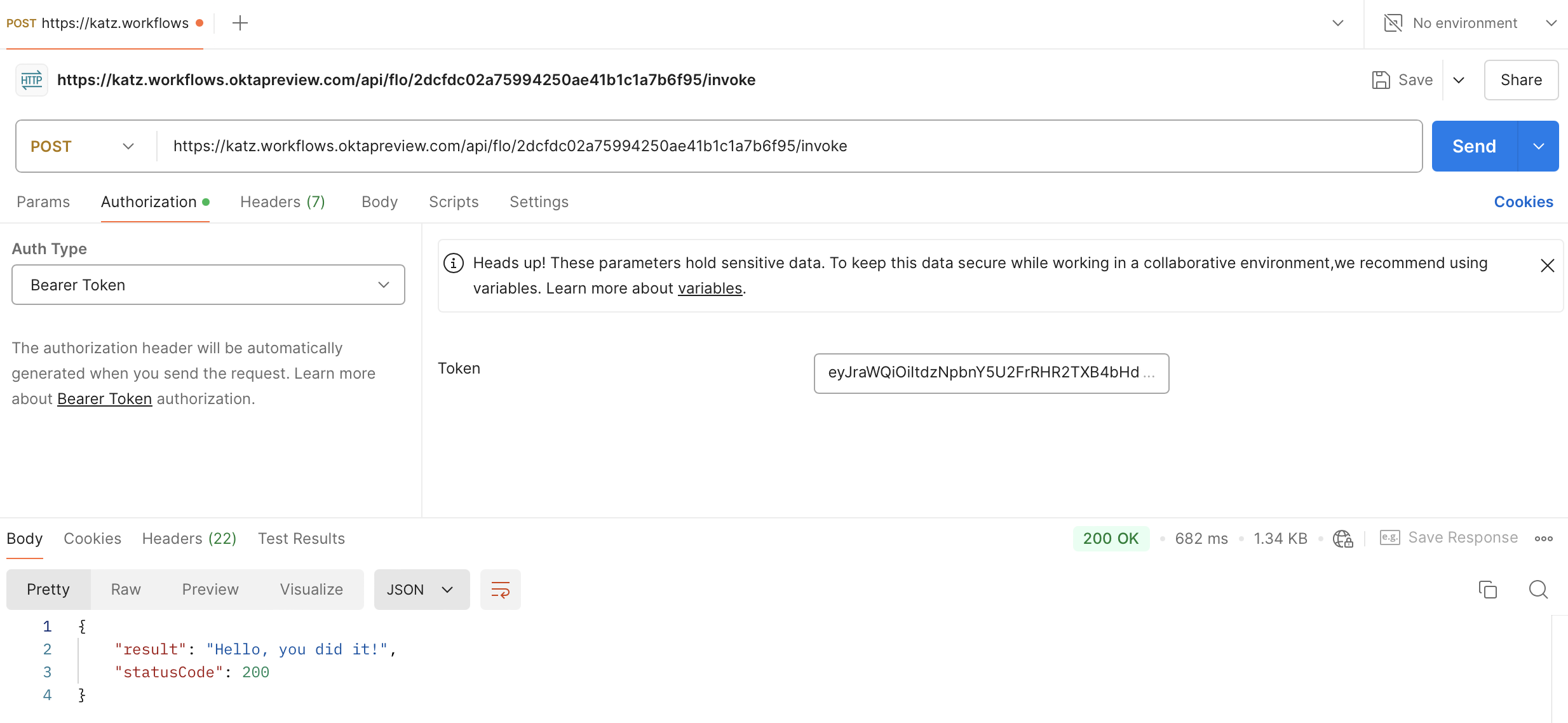
- In Postman:
- Set the method to Post.
- Paste the endpoint URL.
- Select Bearer Auth for Auth Type and paste the access token.
- Click Send.
Invoke with Workflows
The following flow calls the OAuth 2.0 secured flow:

Flow execution shows the result:

Flow template
Download and set up this flow template in your Workflows.
Related Okta Workflows guides
Okta Workflows resources
🍫 Get help from Workflows specialists during weekly community office hours.
📺 Learn from Workflows videos.
🛟 Ask questions and share your flows on the Okta Workflows community forum.
🙋🏻♀️ Get help from the community: join the #okta-workflows channel on MacAdmins Slack.
 Max Katz
Leave a comment