In this guide:
Okta Workflows guides
Okta Workflows guides are questions and answers from the community office hours, the #okta-workflows channel on MacAdmins Slack, and other places. Read all the other guides.
How do you create and validate JSON input in Okta Workflows?
This guide will teach you how to create and validate JSON input in Okta Workflows.
Validate JSON input
This guide focuses on validation. Read the How to Create JSON Data in Okta Workflows guide to learn how to create JSON data.
If you are building a flow (or cards) where JSON is an input (such as the Slack Block UI or Microsoft Teams message), it is recommended that you use the Object — Construct (or List—Construct) cards instead of the Text—Compose card.
You want to validate the following JSON before using it in an API request:
{
   "subject": "🚨 User Activated",
   "body": {
      "contentType": "html",
      "content": "<b>Sara August</b> (<u>asara</u>),  <i>President</i>."
   }
}
Validating this JSON is a good idea since a missing bracket (or similar) can cause the API request to fail.
Use the Object – Construct card
The Object—Construct card can create a valid JSON object.. Note that you can create nested keys, such as body.content.

Testing the Object – Construct card produces the following valid JSON object:

If your block fields are populated by user input of any kind, someone can input JSON and alter the JSON schema itself. This usually breaks the JSON, but it can also change the blocks entirely. Unlike the Text—Compose card, the construct cards will correctly sanitize and validate inputs.
The following flow uses Object—Construct and Text—Compose cards to create a JSON object. At the end, the JSON—Parse card validates the JSON from the Compose card.
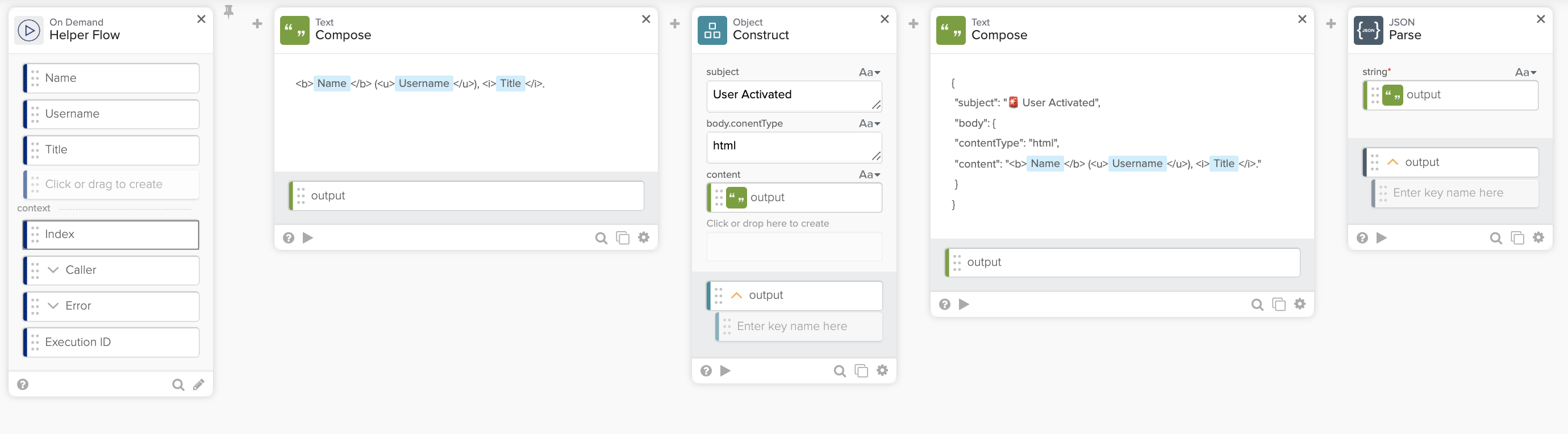
The following flow runs with three text inputs (Sara August, asara, and President):

The next run shows entering {“Title”:”President”} for the Title input. The Object—Construct card creates a valid JSON, while the Text – Compose card doesn’t create a valid JSON.

Use the JSON—Parse card
If you work with a lot of JSON data, you can use the JSON—Parse card to validate it.
The following is an example of validating JSON using the JSON—Parse card before sending an API request.

If the JSON is invalid (missing a comma after the User Activated value), you will see the following error:

Related Okta Workflows guides
Okta Workflows resources
🍫 Get help from Workflows specialists during weekly community office hours.
📺 Learn from Workflows videos.
🛟 Ask questions and share your flows on the Okta Workflows community forum.
🙋🏻♀️ Get help from the community: join the #okta-workflows channel on MacAdmins Slack.
 Max Katz
Leave a comment