In this guide:
Okta Workflows guides
Okta Workflows guides are questions and answers from the community office hours, the #okta-workflows channel on MacAdmins Slack, and other places. Read all the other guides.
How do you search the System Log in Okta Workflows?
This guide will teach you how to search the System Log using the Okta—Search System Logs card in Okta Workflows.
Search the System Log
The System Log contains details of all logged events for an organization, including user authentication, password resets, rate limit errors, user lifecycle information, and any other activity that takes place within the Okta organization.
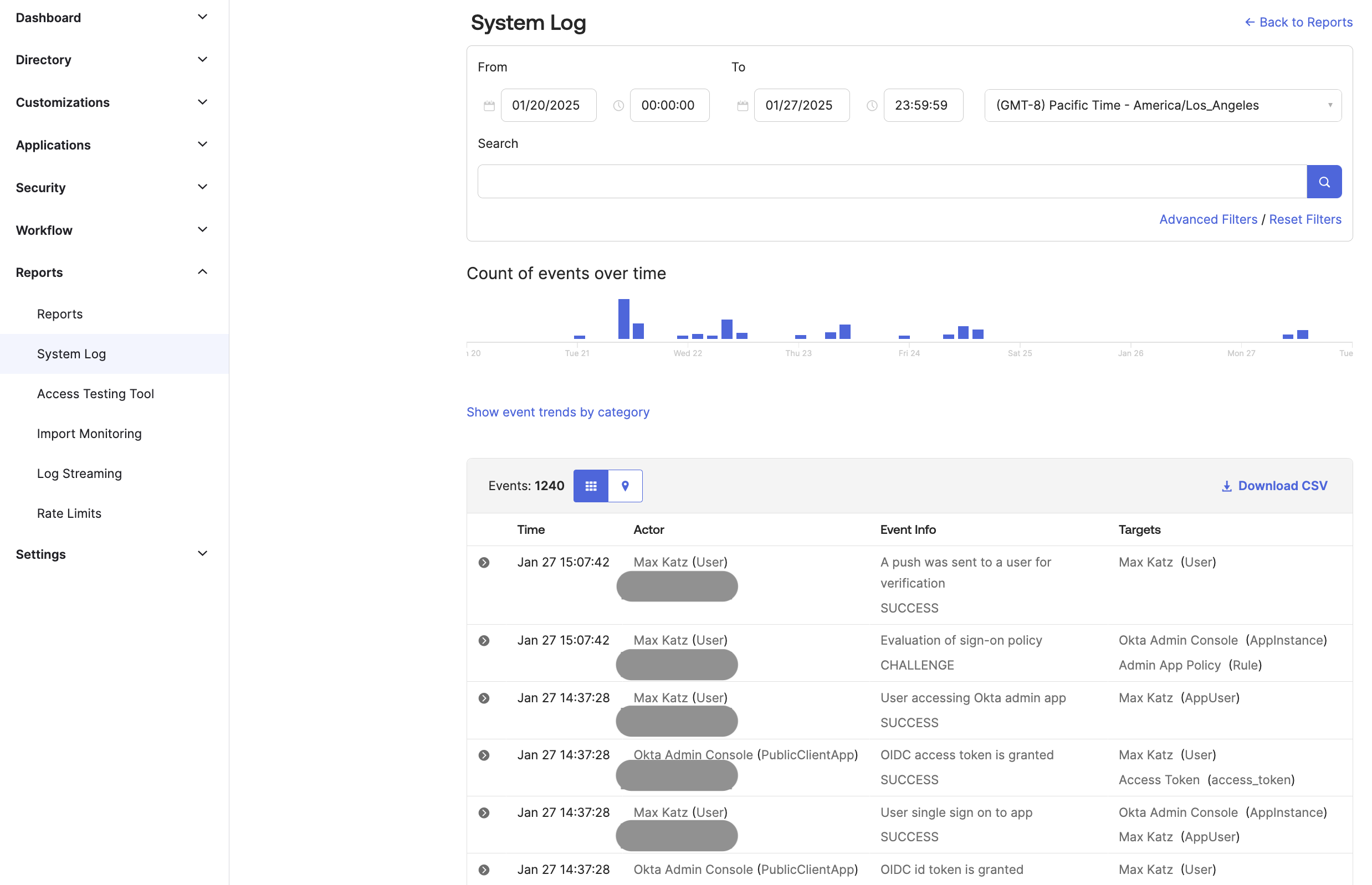
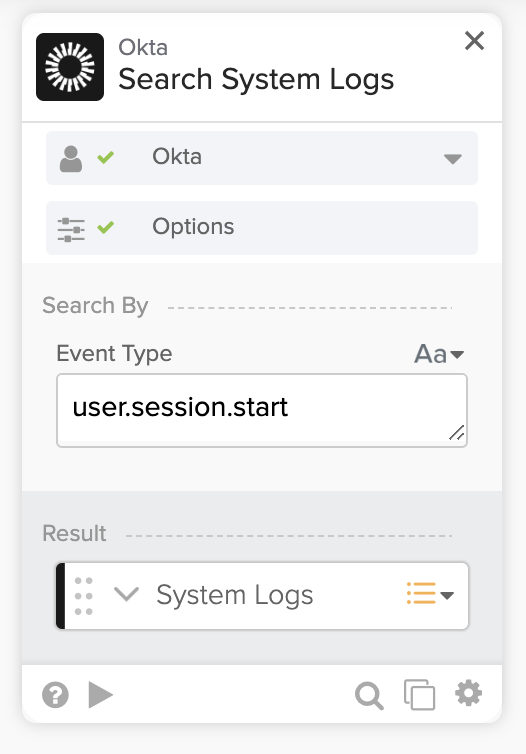
Okta Workflows has the Okta—Search Systems Logs card to search the System Log.
The Search System Logs card has fields to help with searching
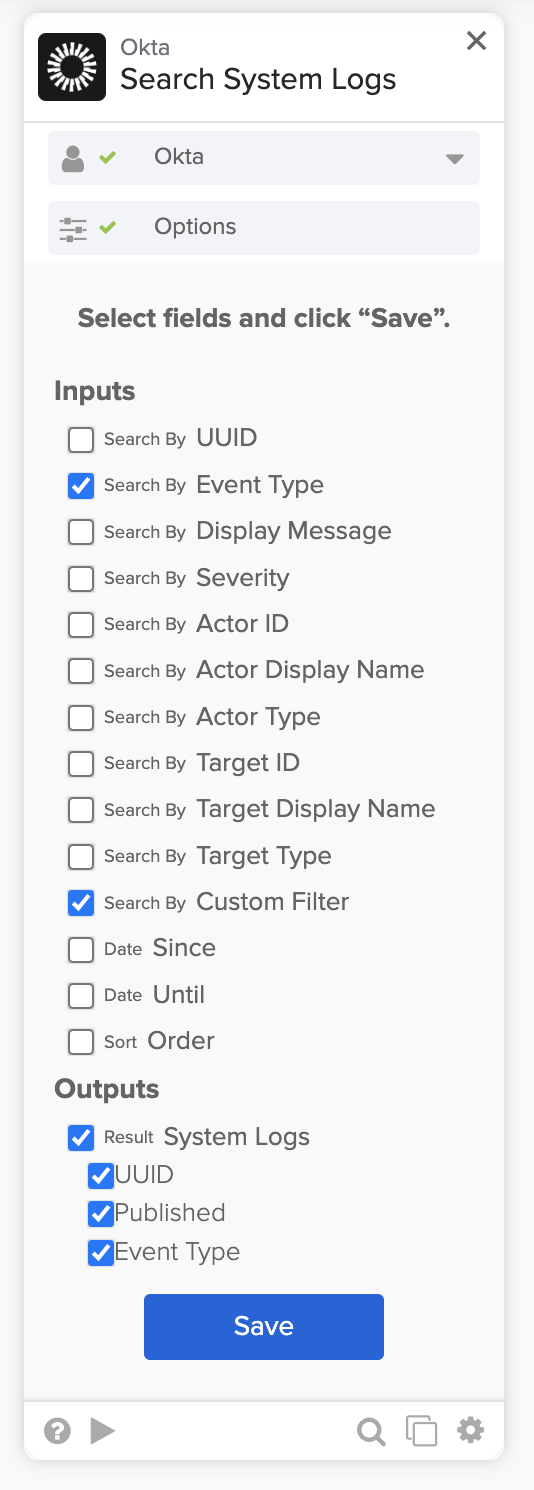
You will likely use the Custom Filter field for greater flexibility.

Find one event in the System Log to help build the query above. Expand the event keys, such as Event and Outcome, to help find the necessary values and create the query. Also, click the copy icon next to Expand All to copy the entire event JSON.

Create a filter using the event information.

You will see the search query after you click Apply Filter.

Copy and paste the search query inside the Okta—Search System Logs card in Workflows.

If you don’t specify a Since date, the default value is 7 days prior (docs).
When searching the System Log, we advise creating a query in the Okta dashboard and then using the query with a Workflows card.
Related Okta Workflows guides
Okta Workflows resources
📺 Learn from Okta Workflows videos.
❓Ask questions during Okta Workflows community office hours.
🛟 Ask questions on the Okta Workflows community forum.
🙋🏻♀️ Join the #okta-workflows channel on the MacAdmins Slack to get help from the community.
 Max Katz
Leave a comment