In this guide:
- Okta Workflows guides
- Process two event hooks with a single flow
- Related Okta Workflows guides
- Okta Workflows resources
Okta Workflows guides
Okta Workflows guides offer questions and answers from Okta Workflows community office hours. They also come from the #okta-workflows channel on the Mac Admins Slack and other places. Read all the other guides.
How to process two event hooks with a single flow in Okta Workflows?
This guide provides an example of processing two event hooks with a single flow in Okta Workflows.
Process two event hooks with a single flow
Flow with API Endpoint
Create a flow to invoke with an API endpoint.

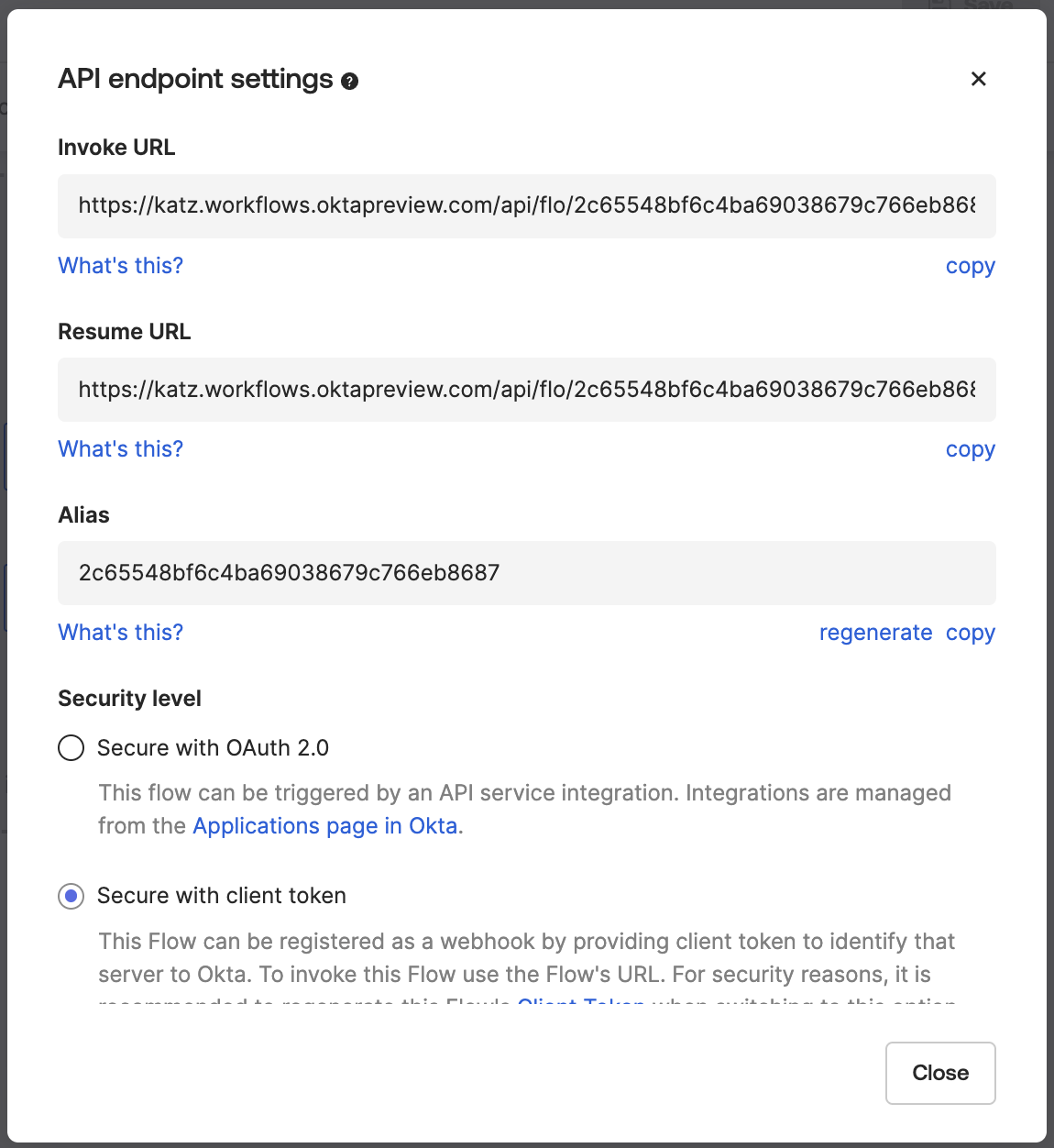
Click on </> at the bottom of the card to see the API endpoint settings and the invoke URL.
Event hook with two events
Create a single Okta event hook that triggers when either of these events occurs:
- User deactivated
- User password reset
This image illustrates an event hook that supports two events. You can see the events listed at the bottom of the image, in the Select Events section.

The event hook calls the flow API endpoint whenever a user is deactivated or their password is reset in Okta.
Okta Workflows Tutorial: Notify When a User is Added to a Group (with Event Hook filtering)
Flow to process events
This image shows a flow to process the two events:

How the flow works
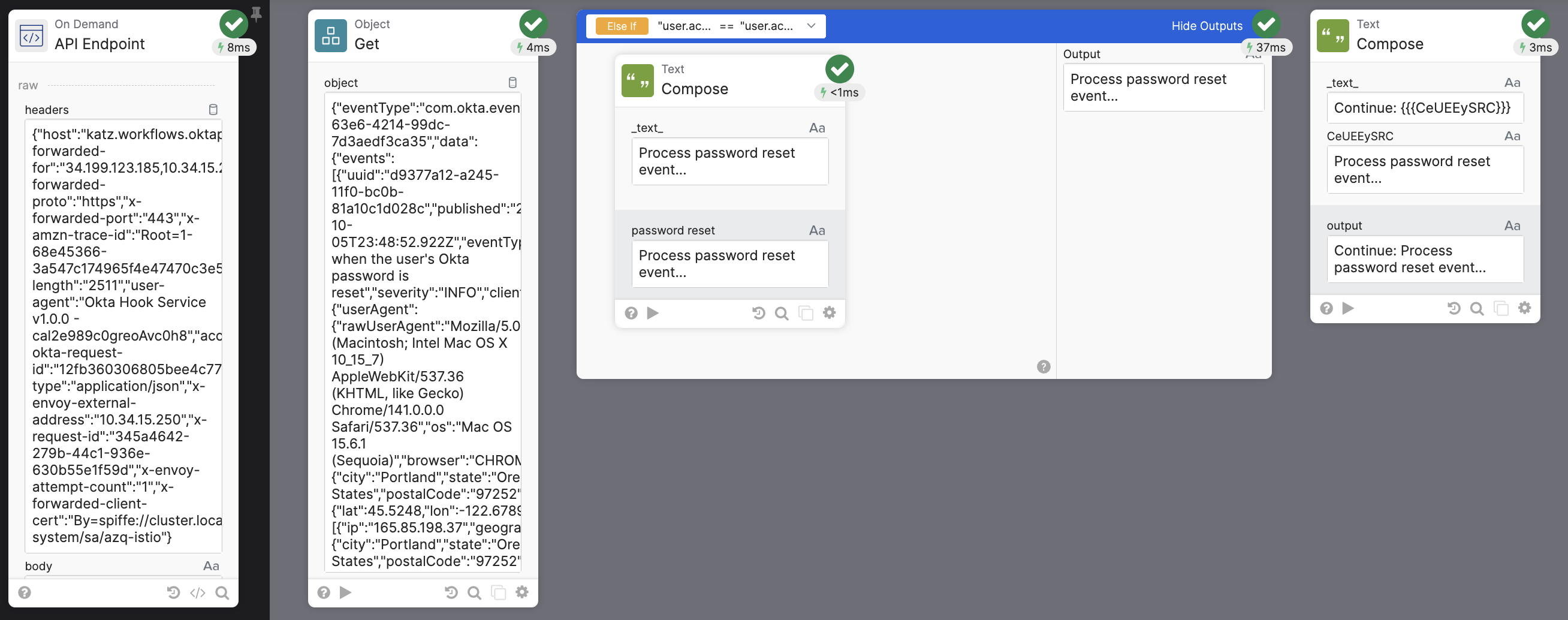
- The API Endpoint card allows to invoke this flow with an API endpoint.
- The Object-Get card gets the event type that triggered the flow.
- The If/ElseIf card checks the event type and executes steps specific to that event.
- The event name when a user is deactivated is user.lifecycle.deactivate.
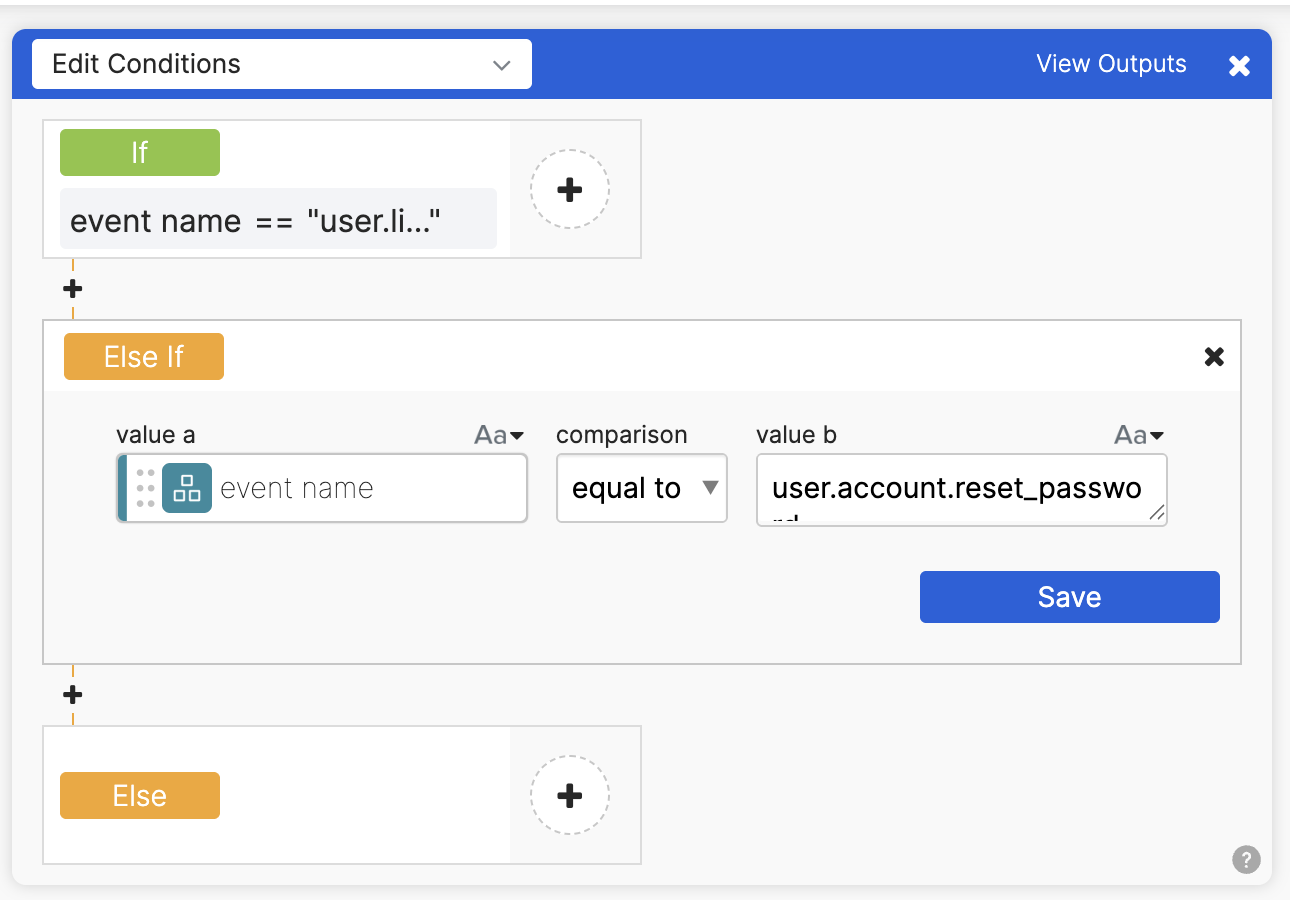
- The event name when a user’s password is reset is user.account.reset_password.
For example, when a password reset event triggers the flow, the If/Elseif card does this check:
And runs these step(s):

Optionally, you can continue running the flow after the If/Elseif card:
Download flow template
Related Okta Workflows guides
- Understanding Okta Workflows Events.
- Okta Workflows Tutorial: Notify When a User is Added to a Group (with Event Hook filtering)
Okta Workflows resources
🚀 New to Okta Workflows? The Getting Started with Okta Workflows page has all the resources to help you get started.
📺 Like learning from videos? Watch Okta Workflows videos.
❓Have a question? Ask during community office hours, post on the community forum, or email me.
🙋🏻♀️ Want to learn from the community? Join the #okta-workflows channel on the Mac Admins Slack.
📖 Want to learn more about Okta and automation? Take the Okta Workflows training on Okta Learning.
 Max Katz
Leave a comment