In this guide:
- Okta Workflows guides
- Create Box app
- Upload file to Box flow
- Related Okta Workflows guides
- Okta Workflows resources
Okta Workflows guides
Okta Workflows guides are questions and answers from the community office hours, the #okta-workflows channel on MacAdmins Slack, and other places. Read all the other guides.
How to upload a file to Box using multipart file upload in Okta Workflows?
This guide will teach you how to upload a file to Box using multipart file upload in Okta Workflows.
Create Box app
Create a Box Limited Access App to upload a file to Box from the Box Developer Console.
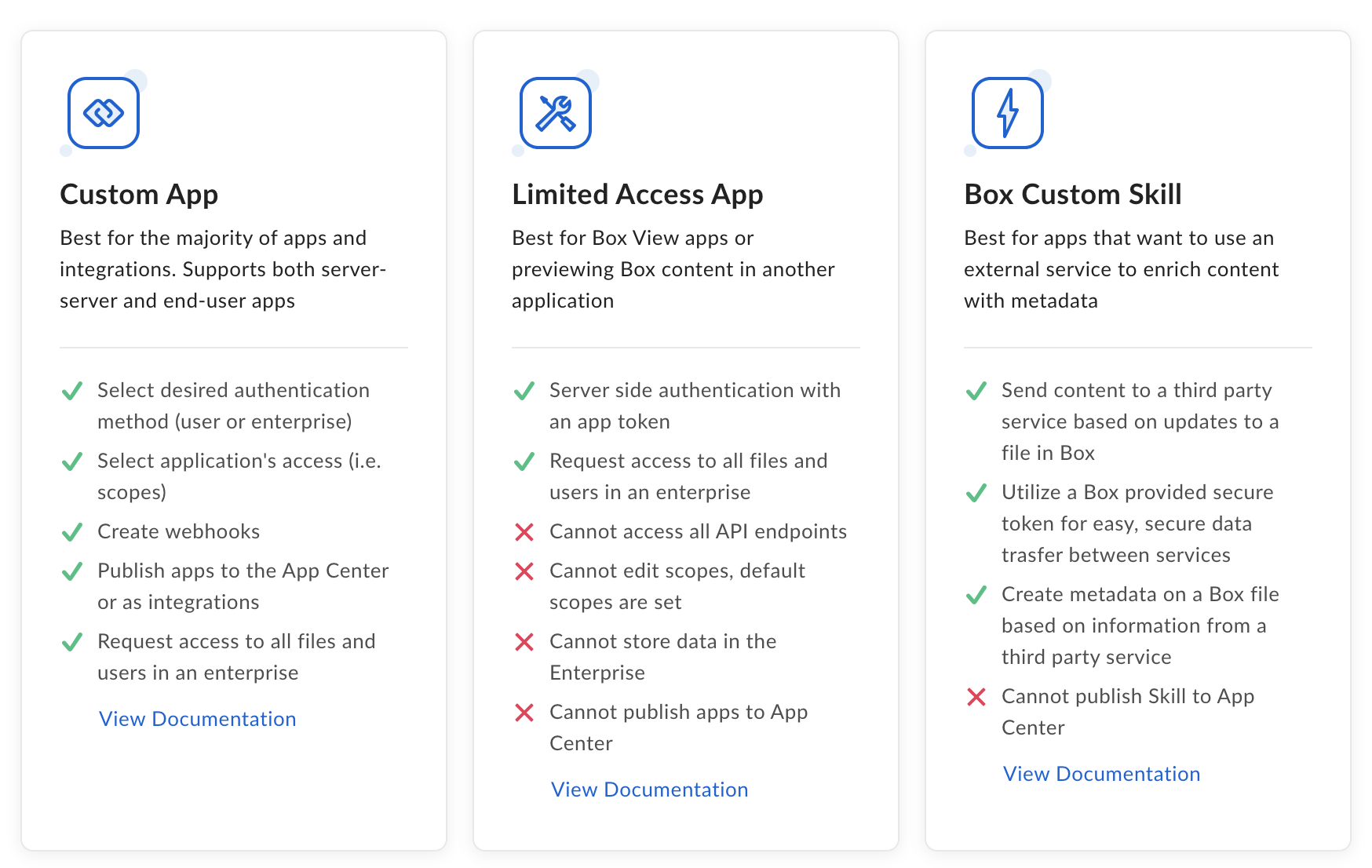
The app looks like this. You will return to this app to set up Box authentication in Workflows.
Upload file to Box flow
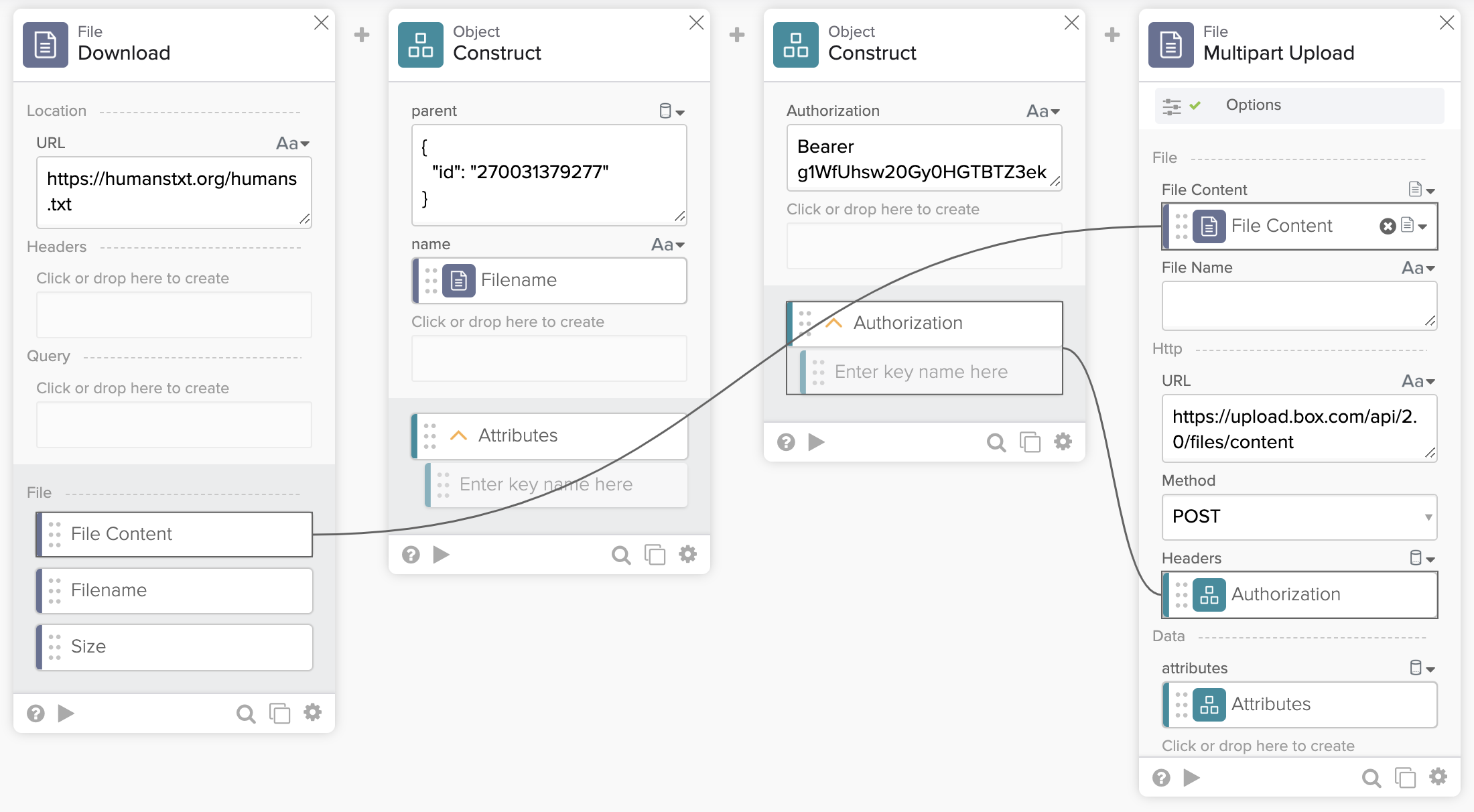
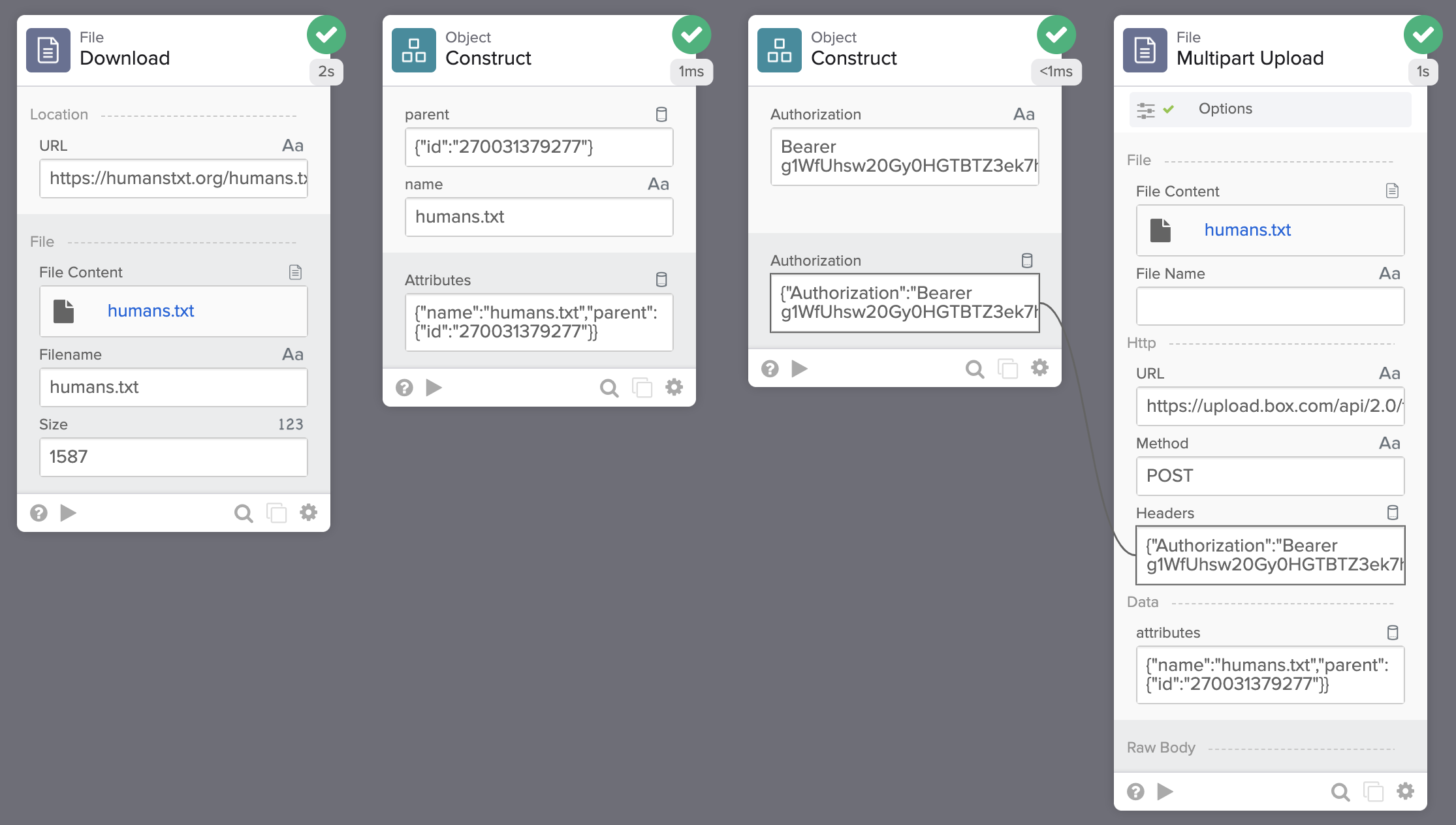
The flow to upload a file to Box:
Flow steps
The flow has the following steps.
- Get the file to upload.
- Set up the file name and folder.
- Set up authentication.
- Upload the file.
Get the file to upload
In the first step, the File – Download card downloads a file from the internet. The flow will upload this file to Box. You can use any other Workflows card that returns a File type.
Set up the file name and folder
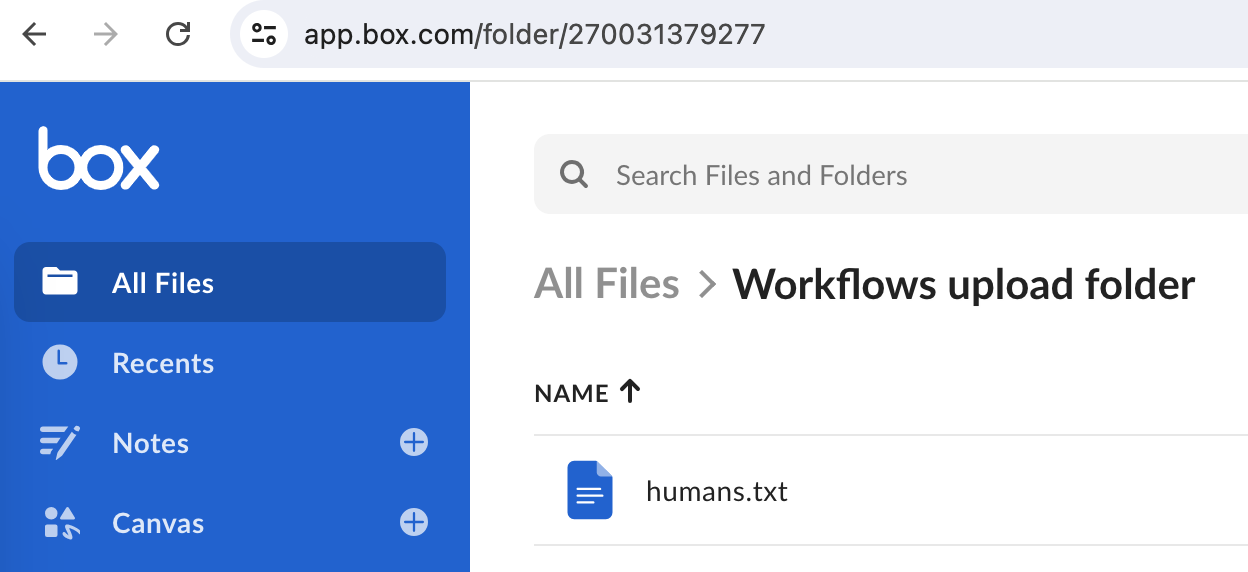
The Object—Construct card sets a file name and folder where to upload the file. The folder ID is in the folder URL.
Set up authentication
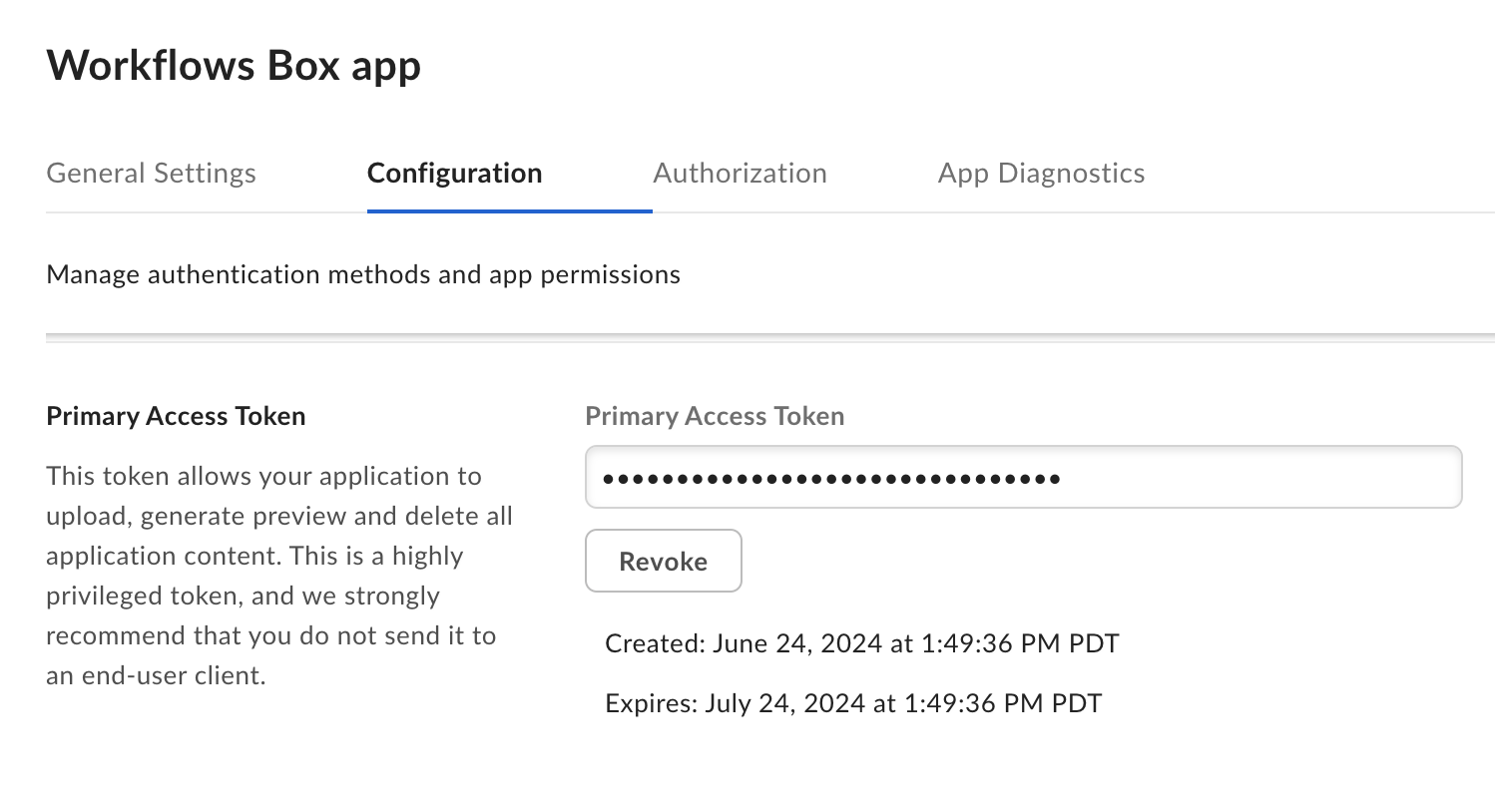
In this step, the Object – Construct card creates the Authorization header. You will find the token on the Configuration tab of the app:
Upload the file
In the last step, the File – Multipart Upload card uploads the file to Box.
- The upload URL is set to https://upload.box.com/api/2.0/files/content
- The card gets the Headers field and attributes field from previous cards.
Allow the app user to upload files
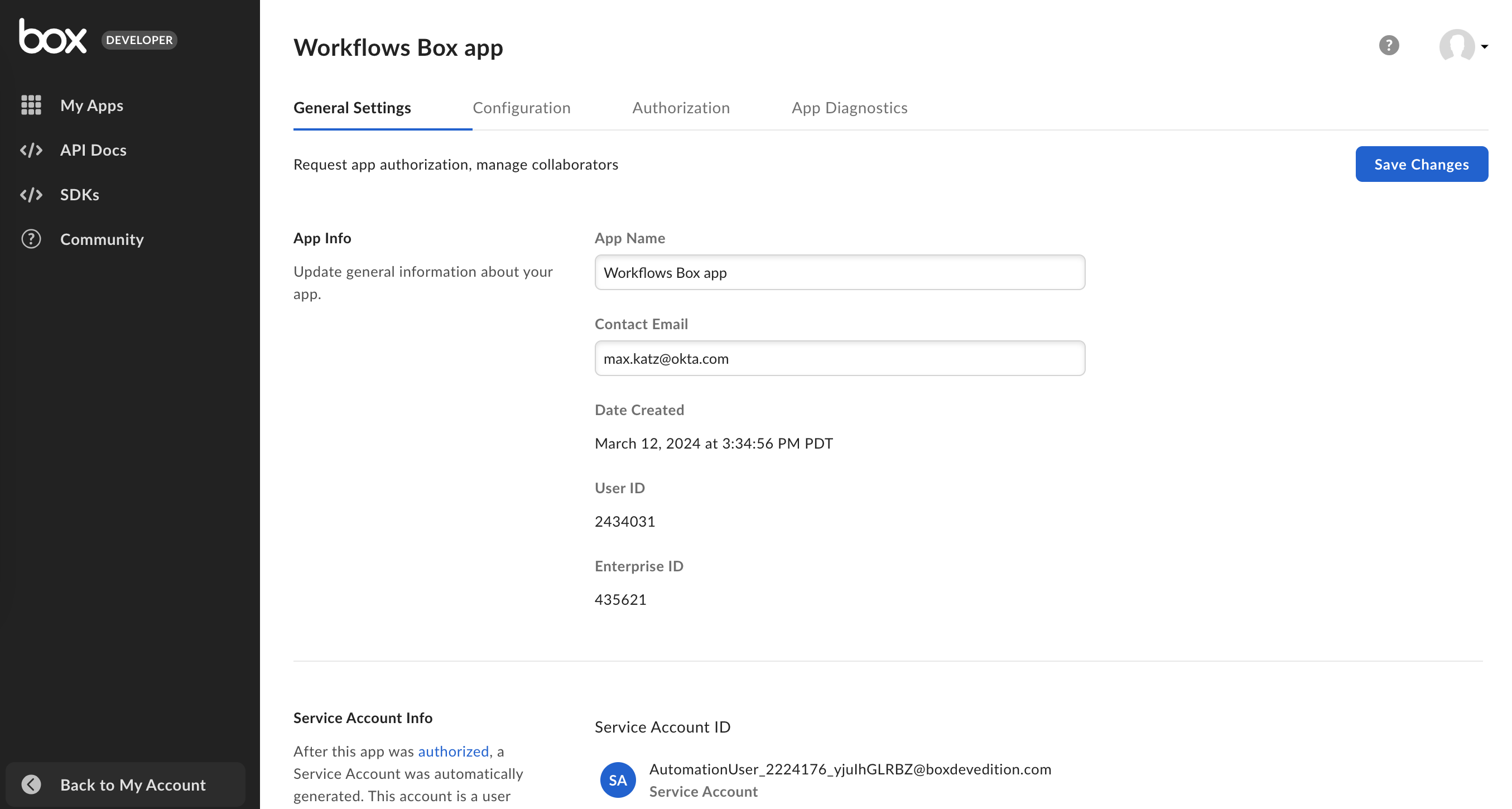
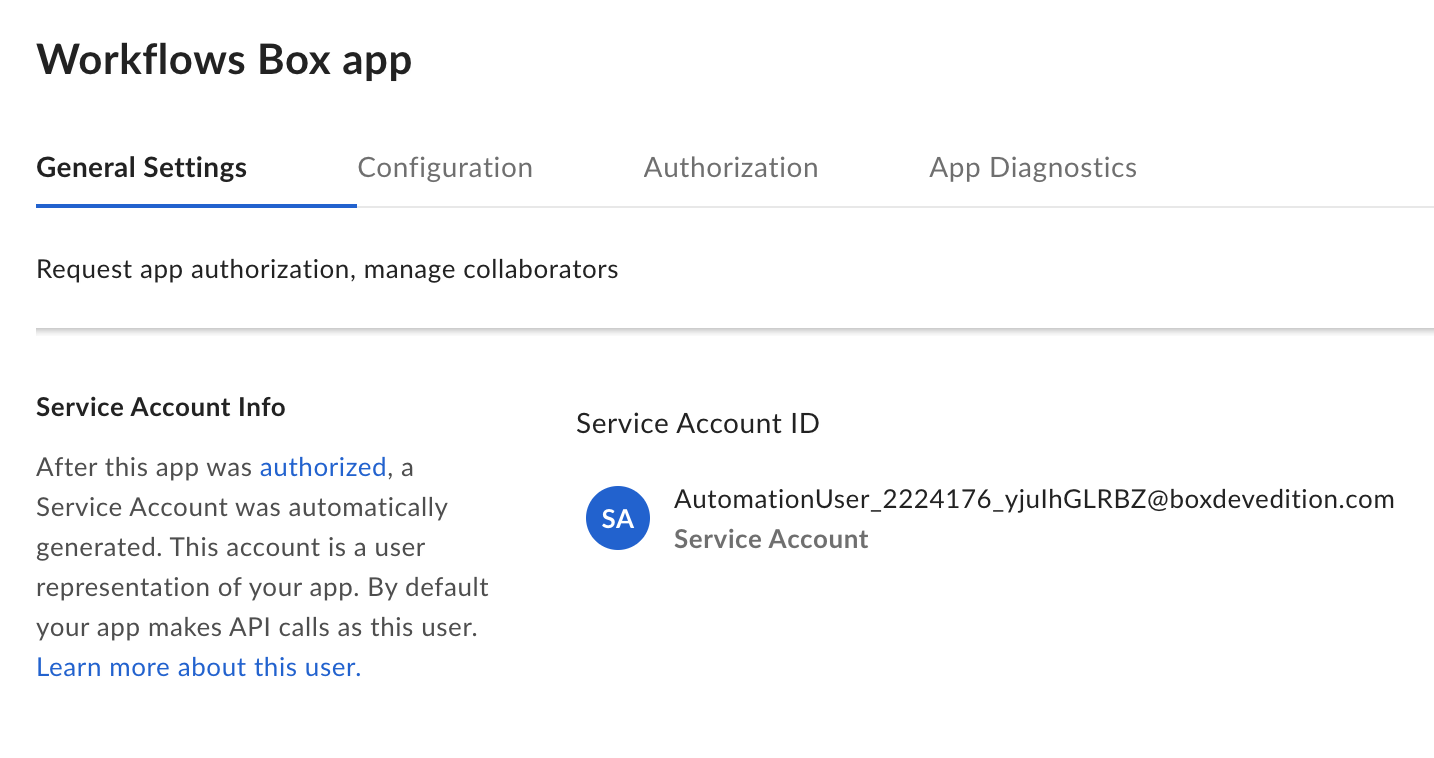
The Box developer app you created has a Service Account ID (ends with @boxdevedition.com) listed in the General Settings tab. You need to share the folder where you upload the file with this account ID. Click Share in a folder you want to share and enter the Service Account ID email address.
Run the flow
Run the flow to download the file from the internet and then upload it to Box.
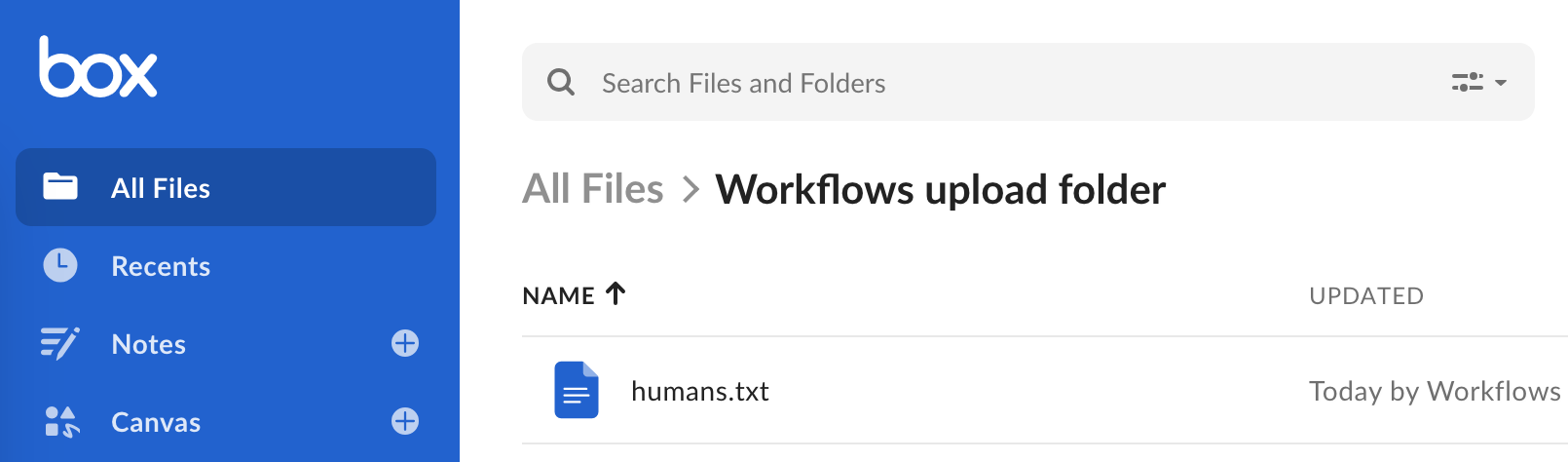
The file on Box:
Random file name and CSV file examples
In this section, you will see two variations of the flow:
- Generate a random file name before uploading.
- Upload a CSV file.
Generate random file name before uploading
Box will return an error if you try to upload a file with the same name.
The following flow shows how to generate a random file name:
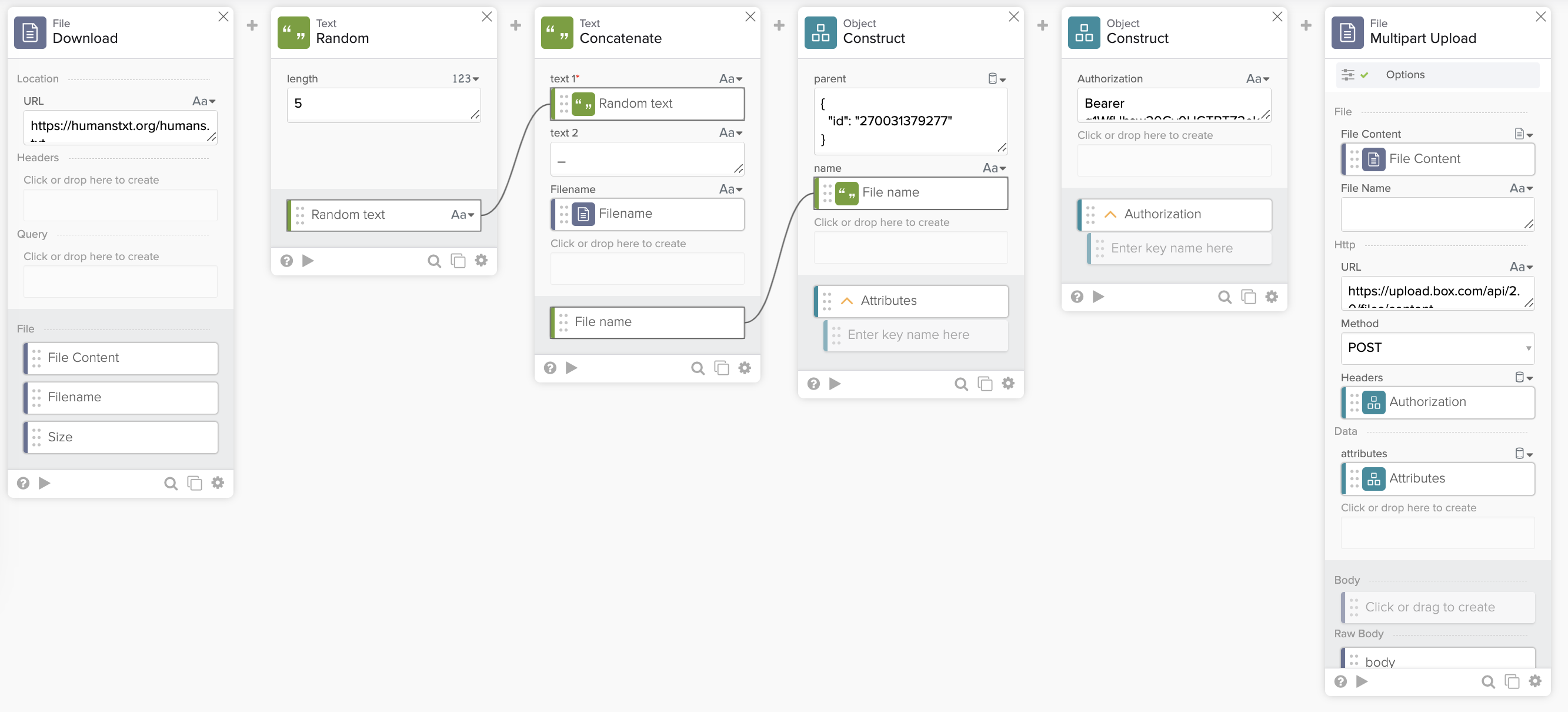
The file has z35nv_humans.txt format.
Upload a CSV file
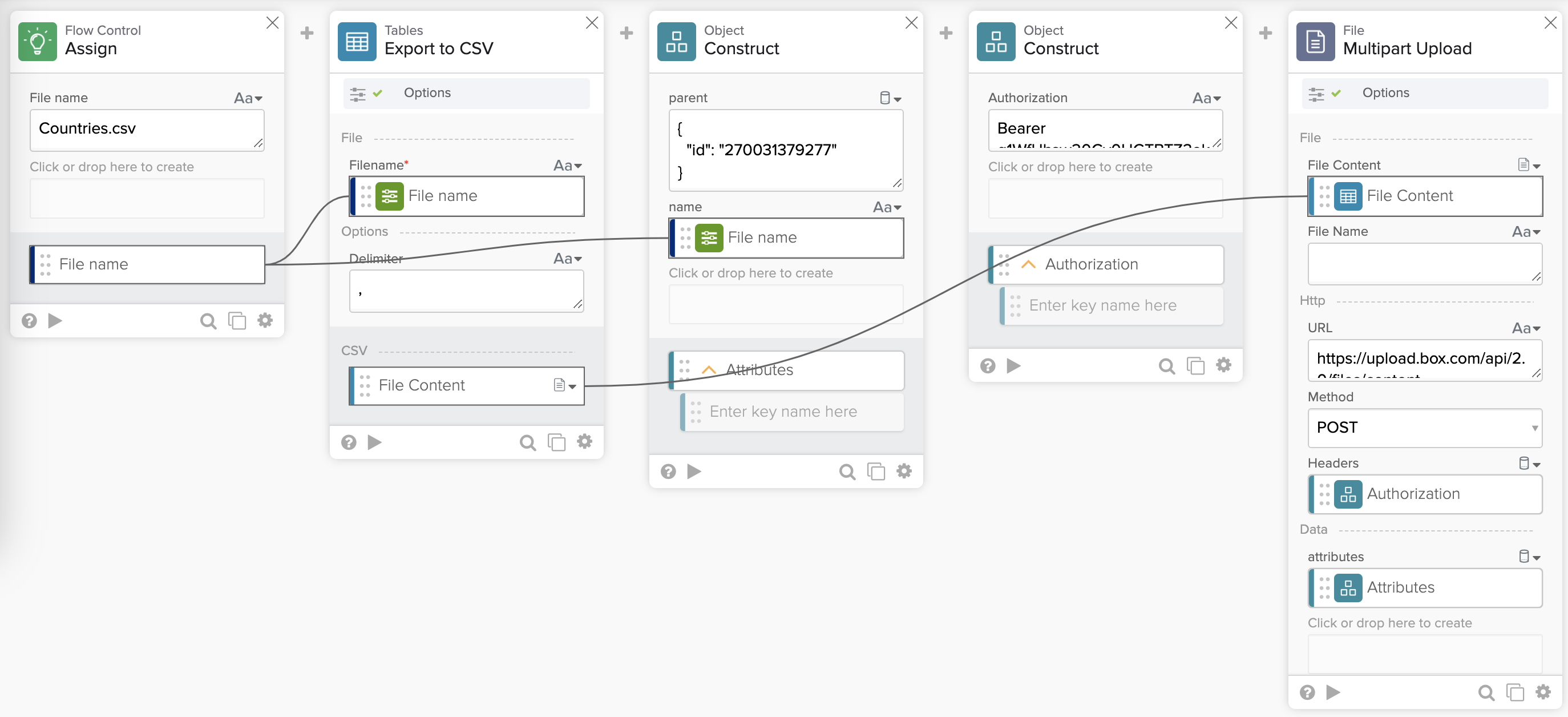
This flow shows exporting a Workflows table to a CSV file and uploading the file to Box.
Related Okta Workflows guides
- How to Create a Text File in Okta Workflows.
- How to Export Group Membership to a CSV File and Email the File in Okta Workflows.
- How to Write Output From the List Users Card to a CSV File.
Okta Workflows resources
🍫 Get help from Workflows specialists during weekly community office hours.
📺 Learn from Workflows videos.
🛟 Get help from support: discuss a Workflows topic or ask a question.
🙋🏻♀️ Get help from the community: join the #okta-workflows channel on MacAdmins Slack.
 Max Katz
Leave a comment