Okta Workflows has over 115 pre-built templates you can start using today. In this post, you’ll see how one of those templates works and how to use it in your org.
The Assign Temporary Group Memberships template solves a common problem: users added to a group for temporary access who never get removed. You configure which groups should have time-limited membership, and Workflows takes care of the rest.
About the template
The template installs three flows and two tables:
Flows
- Flow 1: Determine if user added to temporary group — fires when a user is added to a group and checks if it’s configured for temporary membership
- Flow 2: Scan users for removal — runs on a schedule and removes users with expired memberships
- Flow 3: SUB – Remove User from Group — helper flow that removes the user and cleans up the table
Tables
- Temporary Groups — you populate this with the group name and how long membership lasts
- Users — Workflows writes to this automatically when someone joins a temporary group
Install the template
You can install this template directly from the Okta Workflows template library. The template on GitHub includes the official instructions.
- In your Okta Workflows console, go to Templates.
- Search for Assign Temporary Group Memberships and click Add template. Then select a folder to add the template to.
Flow 1: Determine if the user was added to the temporary group
This flow is event-triggered. It fires every time a user is added to a group and checks whether that group is configured for temporary membership.
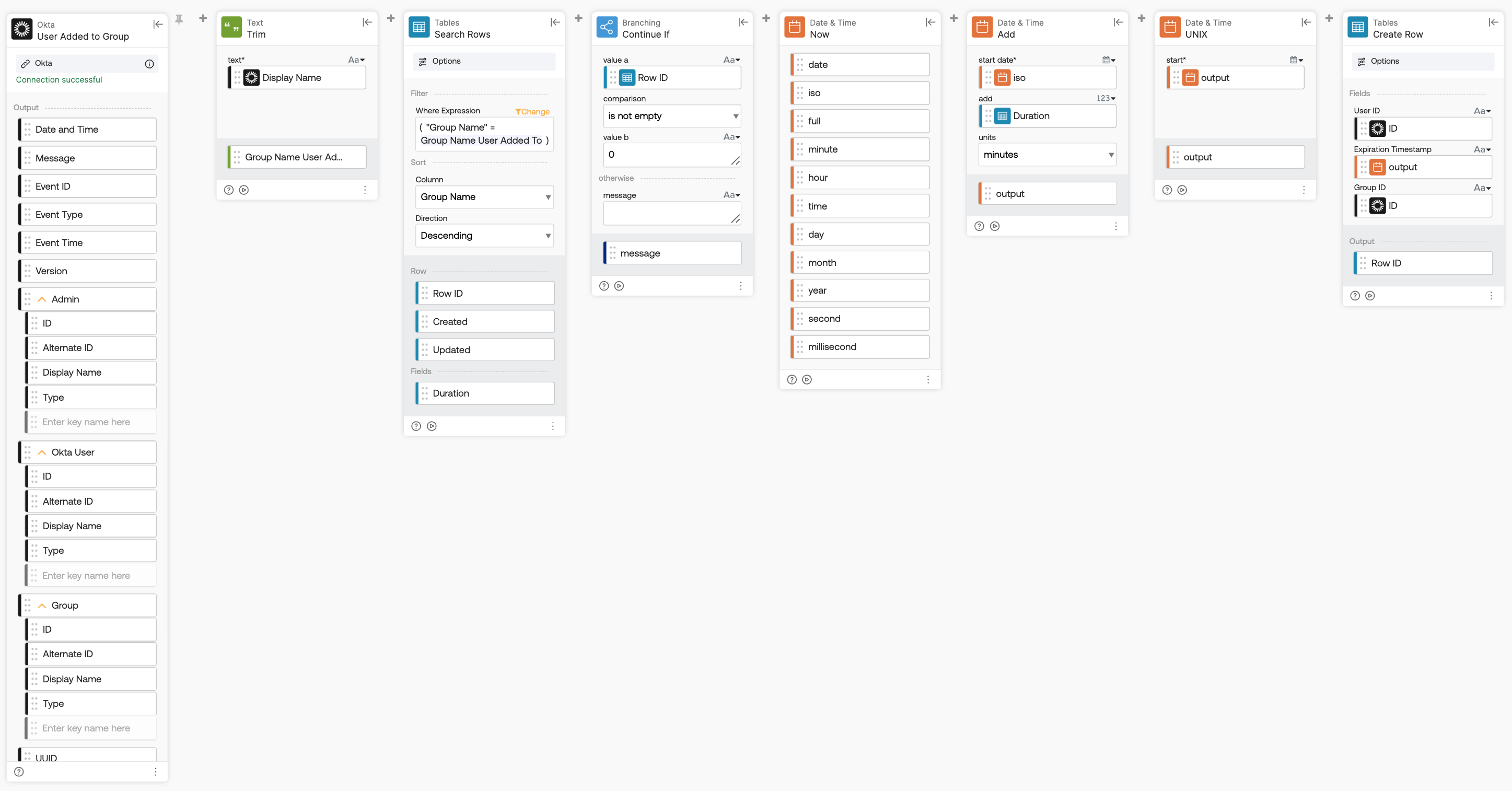
How the flow works
- The Okta-User Added to Group card triggers the flow whenever a user is added to any group in your org.
- The Table-Search Rows card looks up the group name in the Temporary Groups table; the Continue If card stops the flow if there’s no match.
- Three date cards calculate the expiration timestamp: Date& Time-Now gets the current time, Date & Time-Add adds the configured duration, and Date & Time-UNIX converts it to a UNIX number for storage.
- The Table-Create Row card writes the user ID, group ID, and Expiration Timestamp to the Users table.
Flow 2: Scan users for removal
This flow runs on a schedule. It checks the Users table for expired memberships and removes users from the group.
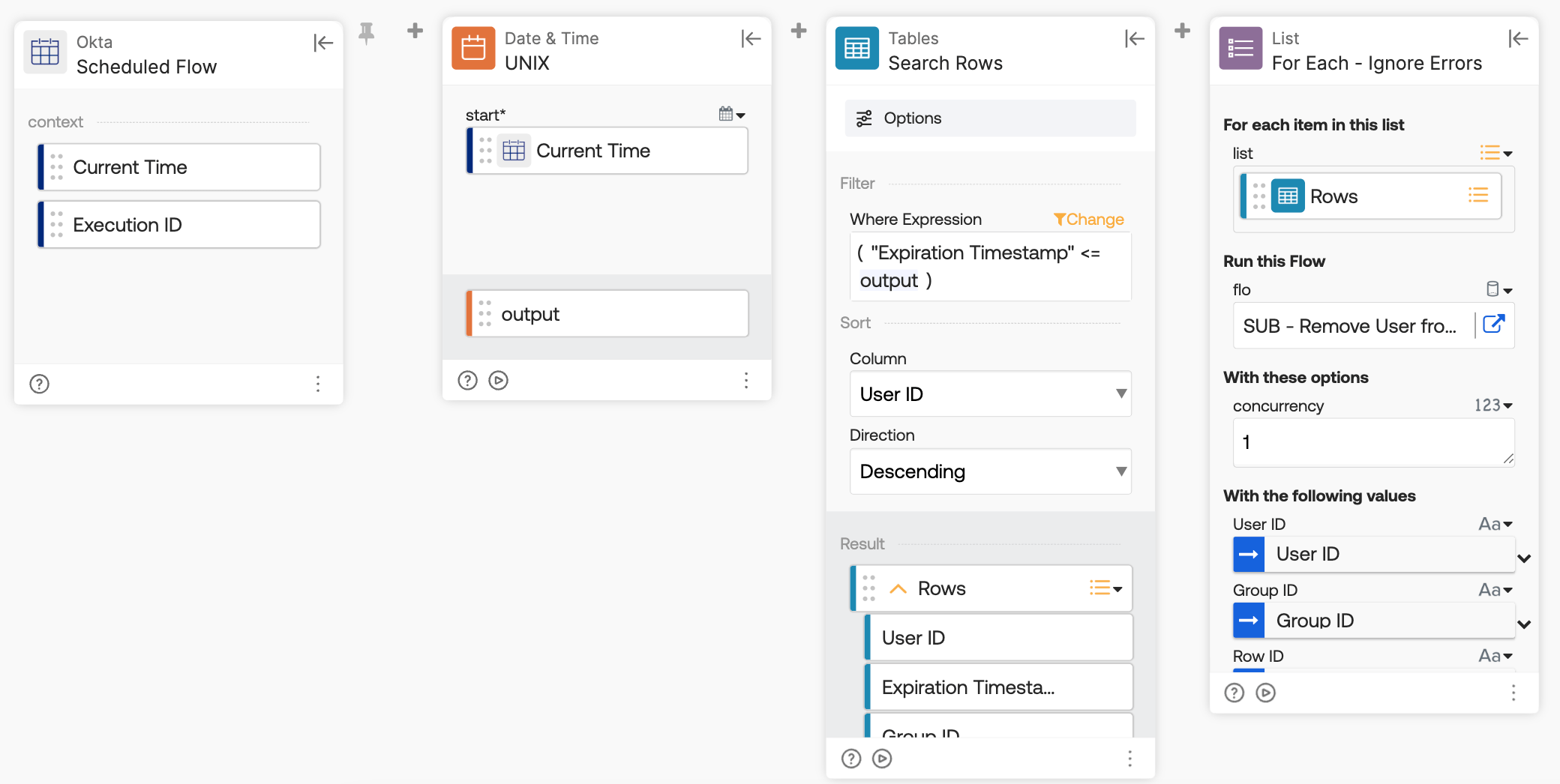
How the flow works
- The Scheduled Flow card triggers on a schedule.
- The Date & time-UNIX card converts the current time to a UNIX timestamp for comparison.
- The Table-Search Rows card queries the Users table for records where Expiration Timestamp ≤ current timestamp
- The List-For Each – Ignore Errors card iterates over each expired record and calls the helper flow, continuing even if one removal fails.
Flow 3: SUB – Remove User from Group
This helper flow is called by Flow 2 for each expired record. It removes the user from the group and cleans up the table.
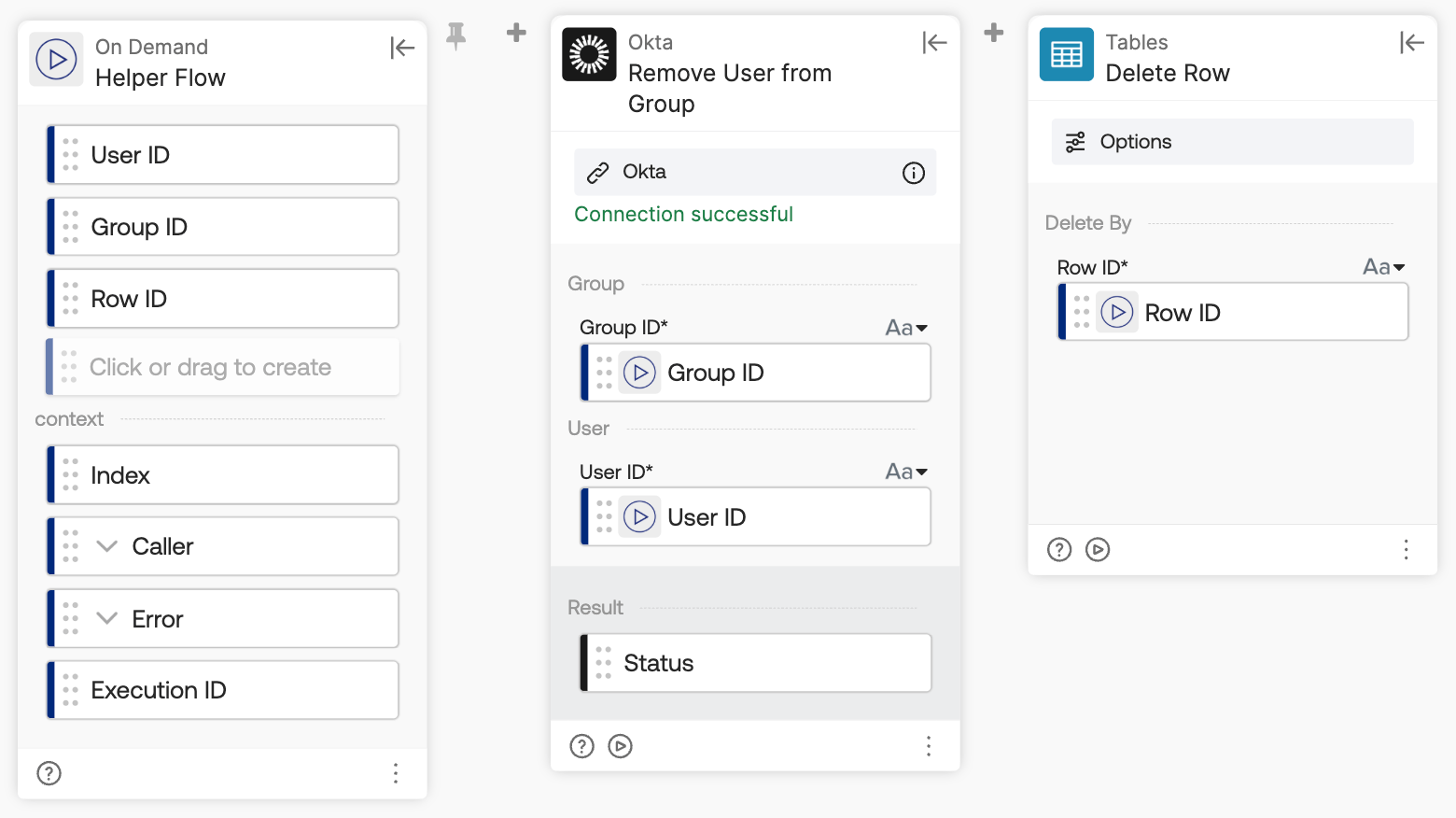
How the flow works
- The Helper Flow card receives User ID, Group ID, and Row ID from the calling flow
- The Okta-Remove User from Group card removes the user from the specified group
- The Table-Delete Row card deletes the record from the Users table
Before you go live
- The duration unit in the Date & Time-Add card defaults to minutes. That’s intentional for testing — you can verify the full cycle works quickly. Before using this in production, change the unit to
days. - The group lookup uses group name, not group ID. If you have two groups with the same name across different applications, both will be treated as temporary groups. Switch the lookup to use group ID if that’s a risk in your org.
Okta Workflows resources
- 🚀 New to Okta Workflows? The Getting Started with Okta Workflows page has all the resources to help you get started.
- 📺 Like learning from videos? Watch Okta Workflows videos.
- ❓Have a question? Ask during community office hours or post on the community forum.
- 💬 Want to learn from the community? Join the #okta-workflows channel on the Mac Admins Slack.
- 🎓 Want to learn more about identity automation? Take the Okta Workflows training on Okta Learning.
Leave a Reply