In this guide:
Okta Workflows guides offer questions and answers from the Okta Workflows community office hours. They also come from the #okta-workflows channel on the Mac Admins Slack, as well as other places. Read all the other guides.
How do you use a service account to authorize a connection in Okta Workflows?
This guide will teach you how to set up a service account to authorize a connection in Okta Workflows.
Using a service account to authorize a connection
The target app here could be Slack, Pendo, or any other app you’re connecting to Workflows.
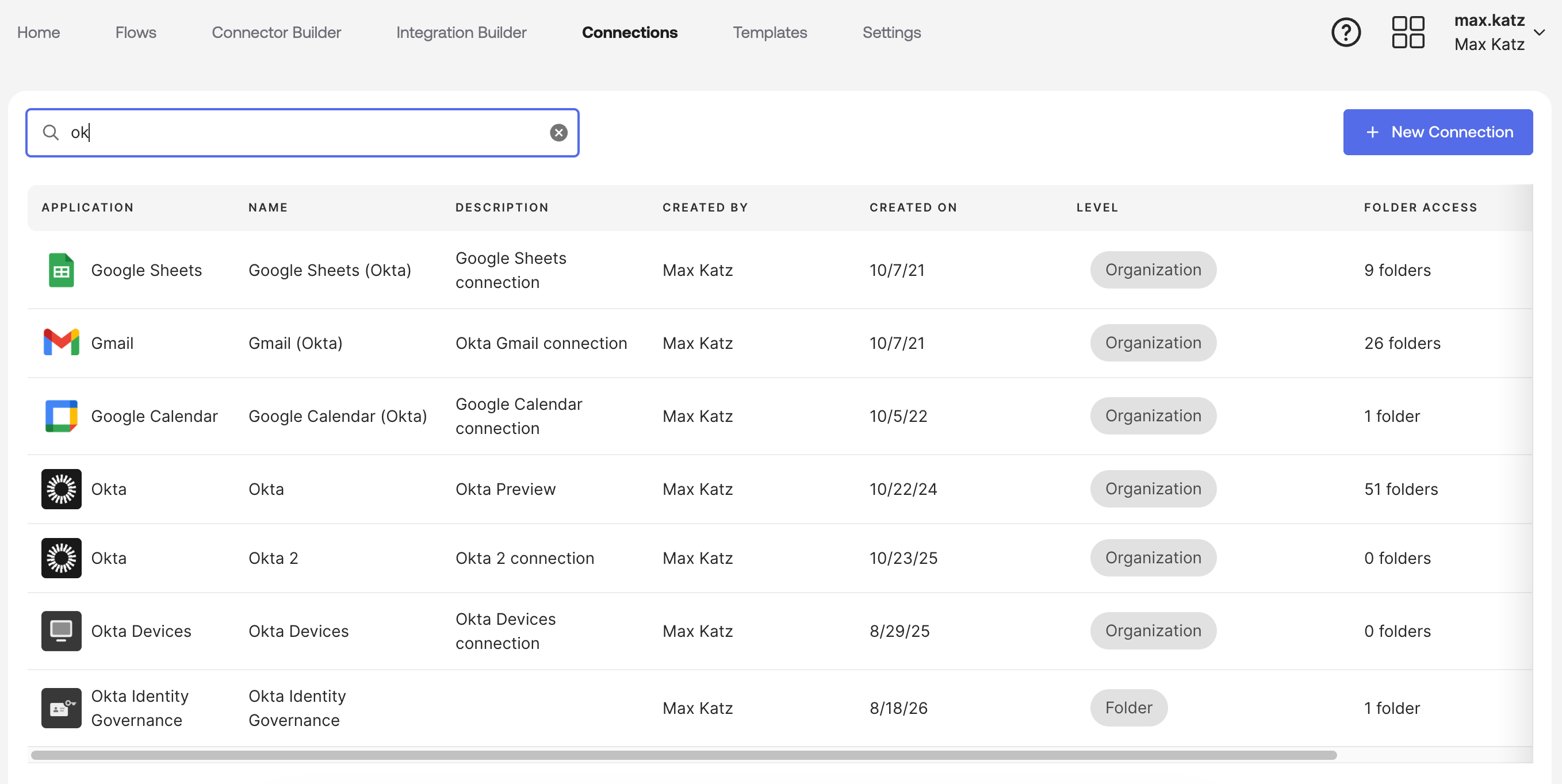
There are three cases, depending on how the service account signs in to the target app.
- The target app has its own login, separate from Okta
- The target app signs in through Okta
- The target app is Okta itself
Case 1 — the target app has its own login, separate from Okta
The service account signs in to the target app using its own username and password.
- Log out of the target app in your browser.
- Alternatively, open a private or Incognito window, or a separate browser that is not normally used to sign in to the target app.
- Log in to Workflows as yourself.
- Start authorizing the connection, and enter the service account’s credentials when prompted.
That’s it — you don’t need to change anything in Okta.
Case 2 — the target app signs in through Okta
This case takes a couple of extra steps because you can’t be signed in to two Okta accounts in the same browser for the same org. So you have to authorize the
connection as the service account, then clean up the temporary access afterward.
- Temporarily assign the service account to the Okta Workflows app. It doesn’t need a super admin — Workflows admin, or Connection Manager within Workflows, is enough.
- In an incognito window or a different browser, log in to Workflows as the service account.
- Create the connection to the target app.
- Log out.
- If the service account doesn’t need to stay in Workflows for anything else, remove it from the Workflows app and revoke whichever permission you granted in
the first step.
The connection stays authorized as the service account — the app assignment and admin role are only needed while creating the connection, so it’s safe to
remove them afterward if you don’t need them for anything else.
Case 3 — the target app is Okta itself
This case has its own requirements, and — unlike Case 2 — the permissions below need to remain in place for as long as the connection must continue to work.
- Assign the super admin role to the service account (authorize the Okta connection as a super admin).
- Assign the service account to the Okta Workflows OAuth app — a separate application from the Okta Workflows app used for Workflows Console access.
- In an incognito window or a different browser, log in to Workflows as the service account.
- Create the connection to Okta.
- Log out.
Keep both the super admin role and the Okta Workflows OAuth app assignment in place for as long as the connection needs to work. Removing either one can break
the connection.
If the service account isn’t assigned to the Okta Workflows OAuth app, creating or reauthorizing the connection can hang with a spinning wheel instead of
completing.
Related Okta Workflows guides
- Okta Workflows Microsoft Connector Disconnecting Frequently / Re-Authorize Step-by-Step Guide
- Okta Support – Actions Taken by Okta Workflows are Attributed to a User Account in the System Log
Okta Workflows resources
- 🚀 New to Okta Workflows? The Getting Started with Okta Workflows page has all the resources to help you get started.
- 📺 Like learning from videos? Watch Okta Workflows videos.
- ❓Have a question? Ask during community office hours or post on the community forum.
- 💬 Want to learn from the community? Join the #okta-workflows channel on the Mac Admins Slack.
- 🎓 Want to learn more about identity automation? Take the Okta Workflows training on Okta Learning.
Leave a Reply