Short and handy Okta Workflows tips and tricks. Read the full series.
Event cards that don’t use a webhook, such as the Gmail–New Email card, poll the application for new data on a schedule. For these cards, you choose a run mode that controls when the flow runs.
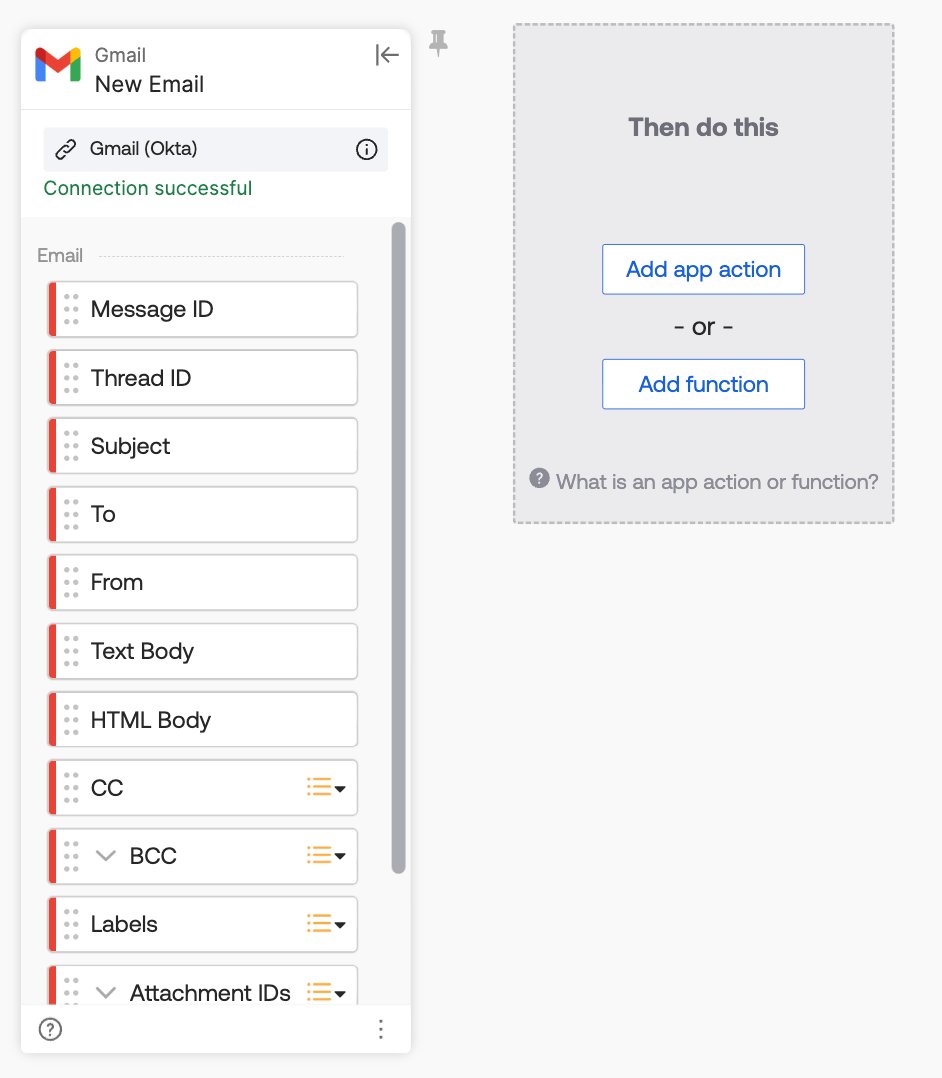
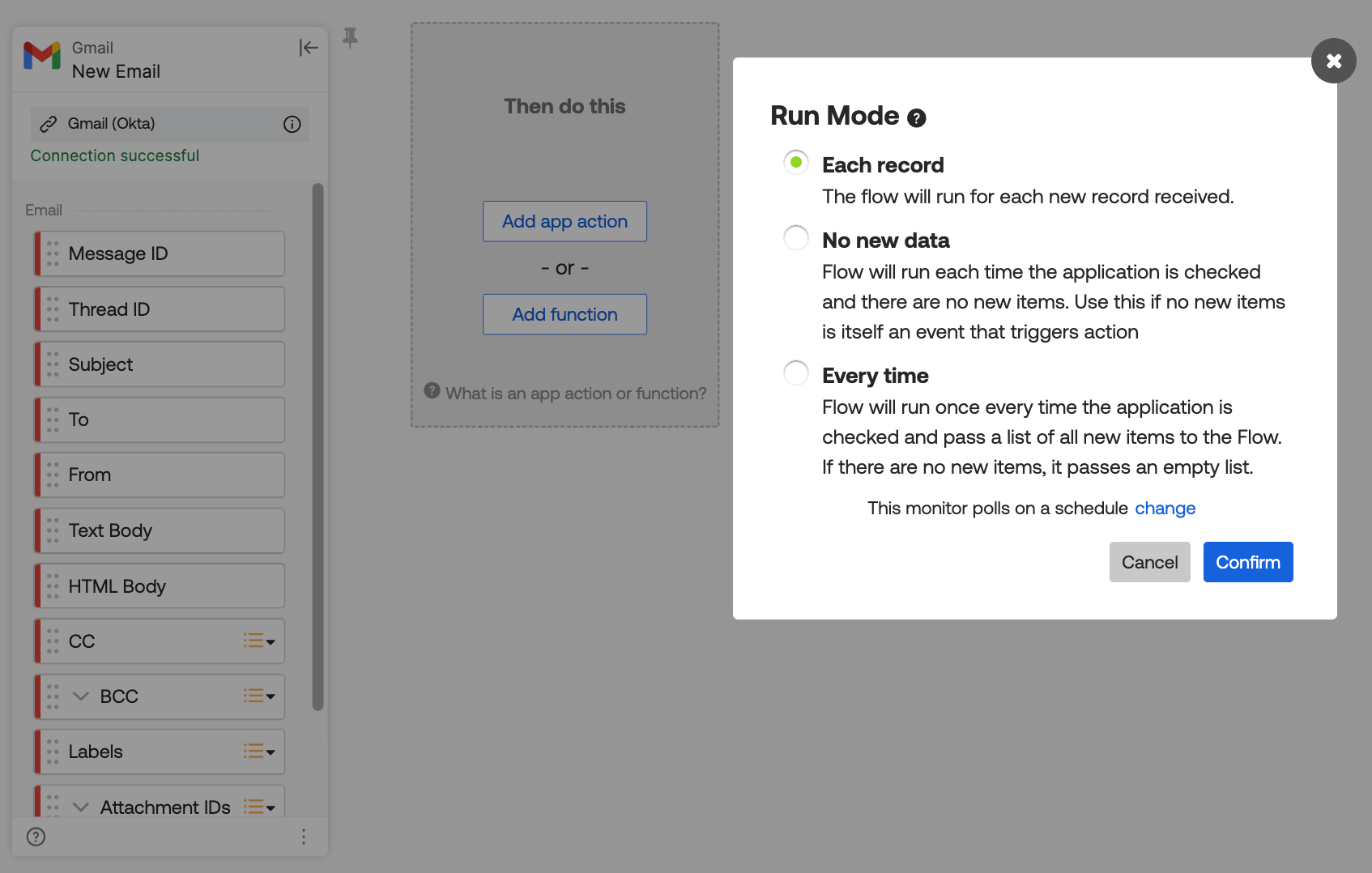
To set the run mode, click the vertical ellipsis menu on the event card, then click Run mode. There are three modes:
- Each record (default): Runs the flow once per new record. If three emails arrive between checks, the flow runs three times.
- No new data: Runs the flow only if the check finds nothing new.
- Every time: Runs the flow on every check and passes in a list of the new records. The list is empty if there’s nothing new.
Each flow tracks its own polling, so several flows can use the same event with different run modes. For example, one flow can process each new item, while another runs only if no new items arrive.
Webhook event cards don’t poll. They have their own run modes: Each record and List of records. For details on all run modes, see Set data exchange options.
Okta Workflows resources
- 🚀 New to Okta Workflows? The Getting Started with Okta Workflows page has all the resources to help you get started.
- 📺 Like learning from videos? Watch Okta Workflows videos.
- ❓Have a question? Ask during community office hours or post on the community forum.
- 💬 Want to learn from the community? Join the #okta-workflows channel on the Mac Admins Slack.
- 🎓 Want to learn more about identity automation? Take the Okta Workflows training on Okta Learning.
Leave a Reply