Short and handy Okta Workflows tips and tricks. Read the full series.
This is tip #100. Instead of writing it myself, I asked community members to share their own Workflows tips. Thank you to everyone who contributed.
Paginate an API Endpoint
If you have an API endpoint that you need to paginate through, you can use this flow to collect all the page data into a single collection in a parent flow.

Use Markdown in the Note Card
Use Markdown in the Note card to add headings, links, and formatting. It’s a good way to keep documentation inline, right next to the cards it describes, for future reference.

Automatically Add Admin Notes to New Applications
I created a flow that automatically adds admin notes to newly created applications. It adds a template to the notes section, so each new application gets the standard information.

Always Add Error Handling
Always add error handling. Any time a connector calls a third-party service, add a Try/If Error card. Create an “error-reporting” helper flow that sends a message to a predefined channel. Then all you need to do is compose the error text and send it to the helper flow.
Also add a Return Error card under the If Error condition. Without it, the flow appears to have run successfully in Execution History, even though error handling was triggered.

Bulk Register AI Agents in Okta
Adding AI agents to Okta one at a time in the Admin Console takes a while. Rajesh published a Workflows template that reads a list of agents from a Google Sheet, registers each one in Okta, adds its public key, assigns an owner, and activates it. Rows that finish move to a second sheet, which works as an audit log.
To set it up, create an Okta connection with the okta.aiAgents.manage and okta.aiAgents.read scopes, create a Google Sheets connection, and point the sheet cards at your own spreadsheet. The template is provided as is, so try it in a non-production org first.
My Two Favorite Tips
I also want to share two of my favorite tips.
Map From the Closest Card
When you map a field, you don’t always have to drag it from the card where it first appeared. If the same field appears on a card closer to the target, drag it from there.
Watch the tip in the video: Discover 15 Okta Workflows Tips (starts at 4:45)
Three Ways to Extract a Value from an Object
There are three ways to pull a value out of a JSON object: the Object – Get card, the Object – Get Multiple card, and the Assign card, which maps nested keys directly with no Get cards at all. All three return the same result.
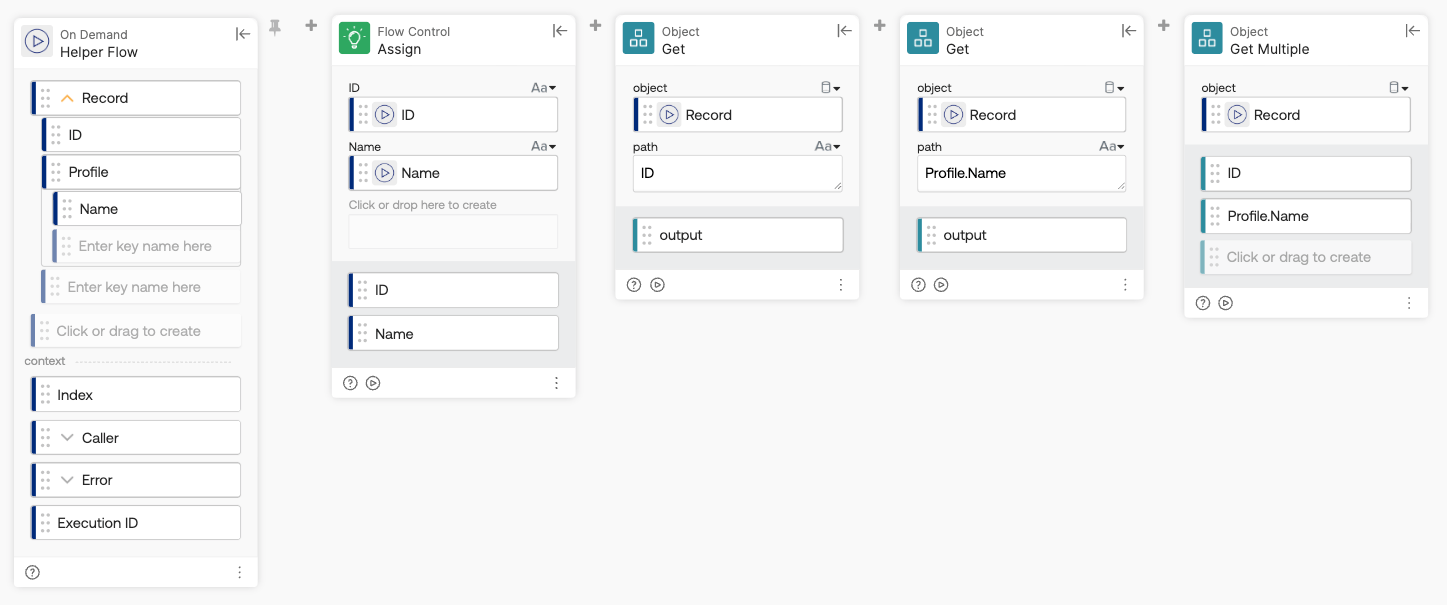
Read the full tip: Okta Workflows Tips #95: Three Ways to Extract a Value from an Object
Tips From Online Meetups
I hosted two online meetups where I shared more Workflows tips. Watch the recordings:
Okta Workflows resources
- 🚀 New to Okta Workflows? The Getting Started with Okta Workflows page has all the resources to help you get started.
- 📺 Like learning from videos? Watch Okta Workflows videos.
- ❓Have a question? Ask during community office hours or post on the community forum.
- 💬 Want to learn from the community? Join the #okta-workflows channel on the Mac Admins Slack.
- 🎓 Want to learn more about identity automation? Take the Okta Workflows training on Okta Learning.
Leave a Reply